
Connect your app to your users' context
By the end of this page your app offers Configure in one click, the user approves on Configure's page and lands back where they started, and your agent knows them from that turn on. Six steps. Steps 1 through 5 are your server's code. Step 6 belongs to the model.
You need Node.js 18 or later. You do not need a Configure account to start: the sandbox hands you keys and a synthetic user in one call.
1. Install the SDK and get your credentials
bash
npm install configure
npx configure setup --users
TIP
Using a coding agent? Paste this into Claude Code, Cursor, or Codex and it runs setup and every step on this page: Read https://configure.dev/skill.md and add Configure to this project. The Skills page has the details.
Setup signs you in and writes your credentials to .env:
| Variable | What it is |
|---|---|
CONFIGURE_API_KEY | Secret key, sk_ prefix. Server only. Never ships to a browser. |
CONFIGURE_AGENT | Your agent handle: lowercase letters, digits, and hyphens, 2 to 63 characters. Identifies your app on every request. |
CONFIGURE_PUBLISHABLE_KEY | Publishable key, pk_ prefix. Safe in browser code; the components in step 2 carry it. |
CONFIGURE_OAUTH_CLIENT_ID, CONFIGURE_OAUTH_CLIENT_SECRET | The OAuth client behind Sign in with Configure. Server only. Unused on this page. |
Two of these reach production for the pattern on this page: the secret key and the agent handle. The publishable key ships to the browser only if you use a Configure component there, and the OAuth pair only if you use Sign in with Configure. They usually live in different stores, the key as a secret and the handle as ordinary configuration, and staging should get its own key rather than falling back to production's, so a test user can never write into a real profile.
Create one client for your server, and one profile handle per user, keyed by the id your product already uses:
ts
import { Configure } from "configure";

export const configure = new Configure({
  apiKey: process.env.CONFIGURE_API_KEY,
  agent: process.env.CONFIGURE_AGENT,
});

export const profileFor = (userId: string) =>
  configure.profile({ externalId: userId });

export const CONNECT_PROMPT = "I want to securely connect my context";   // the fixed message, step 2
externalId is your user id. The user never sees it, and you never reconcile it against anything: when they connect, Configure links their account to it. It has to be an id that outlives the session, so a visitor who has not signed in has no profile to key: offer Configure once they have an account of yours, or use Sign in with Configure as the account itself. Never key a profile by a cookie or a session id, because the next visit invents a new user and their memories are stranded.
Four names on this page are yours, not Configure's: sendMessage is however your chat sends a user message, renderCard puts a server response on the page, store is your own cache of one string per user, and contextFor is the small helper in step 5 that reads it. Server code is labeled with a file under server/; browser code with a file under client/.
2. Add the entry point
The entry point is one of Configure's components, named by where it goes. Each one is a single element served from Configure, with the Claude, ChatGPT, Gemini, and Grok marks built in, so the user can see that their memories from those assistants come with them. Put it where eyes land on the first visit, and use more than one if your app has more than one surface.
What the click does depends on the surface:
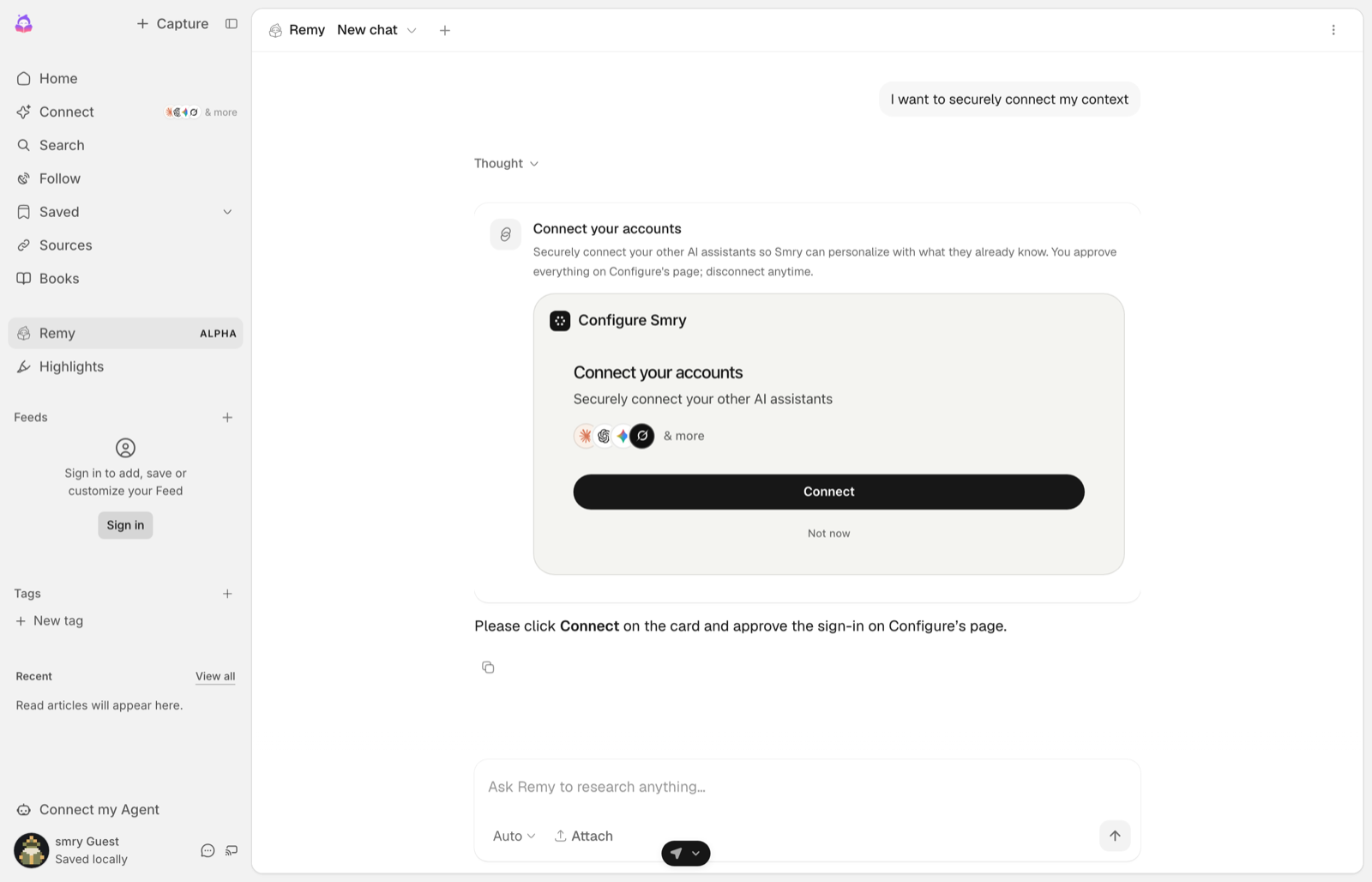
- In a chat, the click starts one fixed message,
I want to securely connect my context, and your server answers it with Configure's card (step 3). - Outside a chat, in onboarding or settings, there is no conversation to put a card in. The click takes the user to Configure's page, and Configure brings them back when they are done, connected, so your next screen can already be filled in. That path is its own short page: Onboarding.
| Placement | Where it goes | Component |
|---|---|---|
| Composer | Next to image and file attachments, as the + menu | Configure.personalizationButton() |
| Your own button | Under the composer, first in the suggestions, or a sidebar row | Your control, sending the fixed message |
| Onboarding or settings | A step or a row | Your control, going to /onboarding/connect, wired as on the Onboarding page |
| Card | Inside the conversation, answering the fixed message | Configure's hosted card, step 3 |
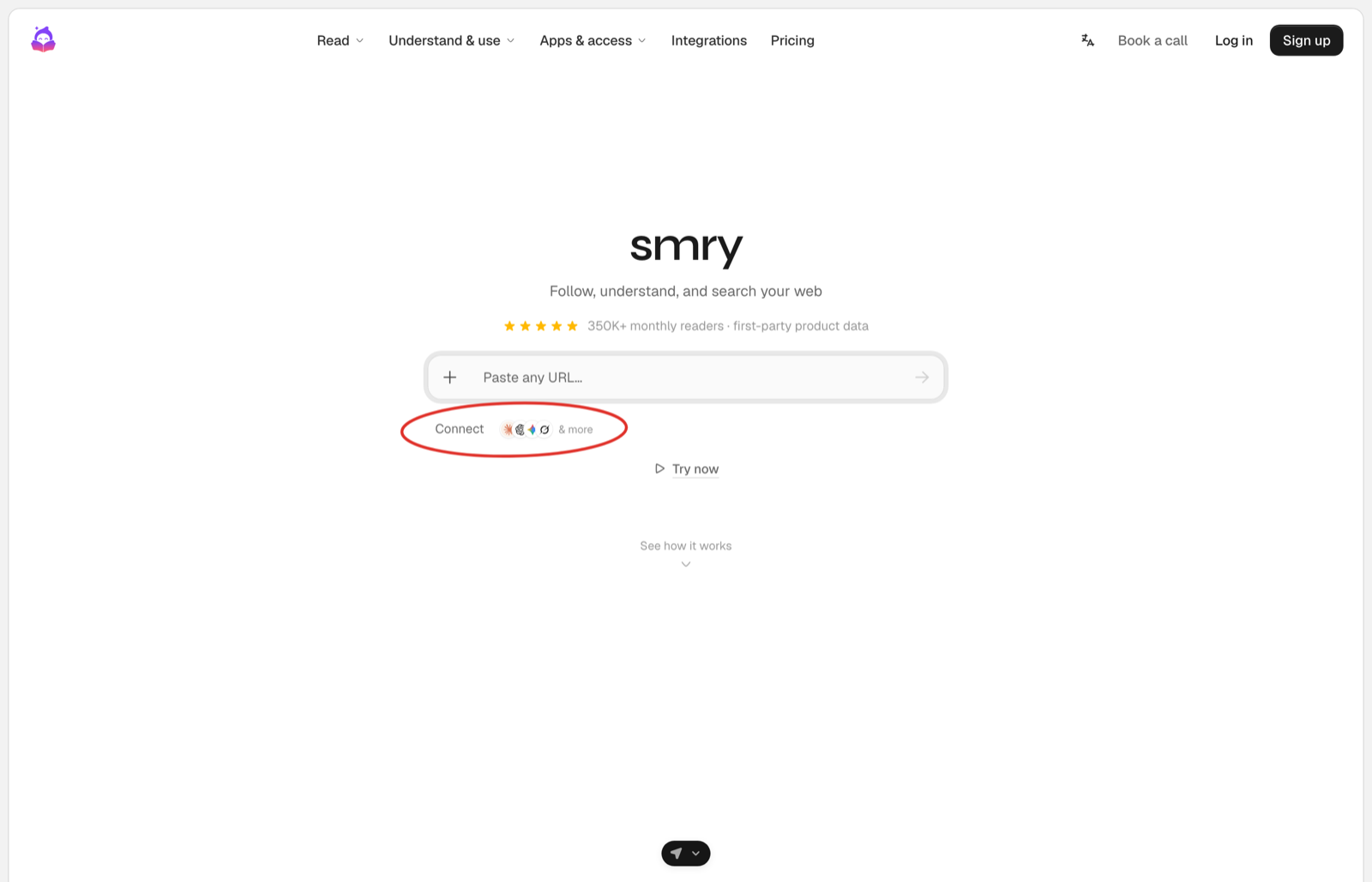
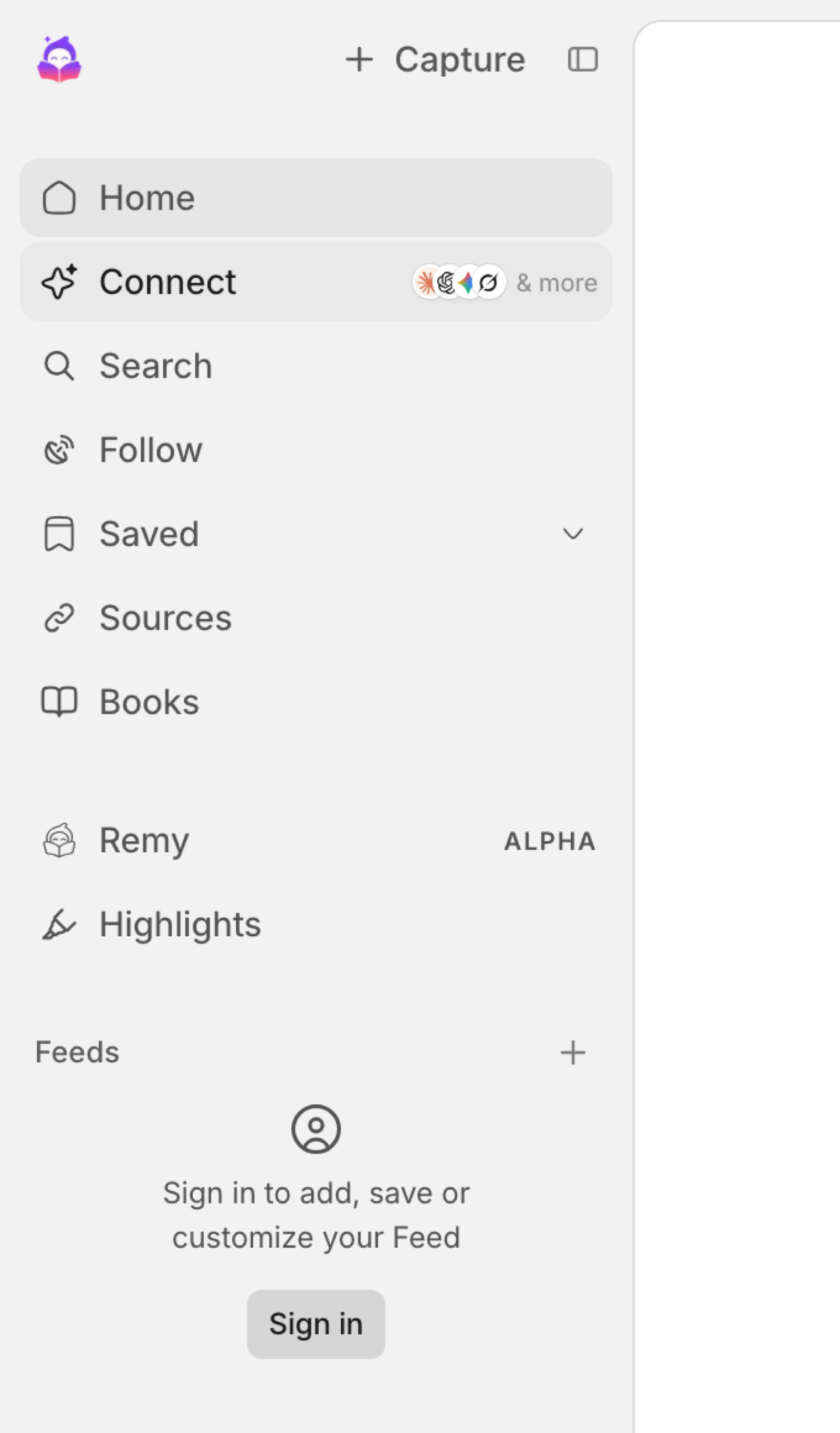
The chip, wired for a chat:
html
<button id="connect" type="button">Connect</button>

<script>
  document.getElementById("connect").addEventListener("click", () => {
    sendMessage("I want to securely connect my context");  // the fixed message
  });
</script>
Any control you already have works: the click sends one fixed message and nothing else. Configure's own composer button, the + menu next to attachments, is on the Components page with the rest, and it opens the hosted flow inline instead of sending a message.
The message is deterministic on purpose. The user never has to know what to type, and your server never has to guess what they meant. Every component, with its look and its code, is on the Components page.
3. Answer with the card
When the fixed message arrives, your server calls profile.connect() and your page mounts Configure's card with the result. For a user who has not connected, the result carries connected: false and a connect_url, and the card shows Connect; for one who connected through this flow, it carries connected: true and the card shows Connected. The card is an MCP app, rendered in an iframe: everything inside it, the provider marks, the Connect button, the permission screens behind it, is Configure's.
ts
if (userText === CONNECT_PROMPT) {
  // The fixed message. Answer it with the card, deterministically.
  // Never leave this decision to the model.
  const connect = await profileFor(user.id).connect();
  return renderCard(connect);            // the connect() result, unchanged
}
The result carries more than the card needs: mcp_result is what the card reads, livemode says whether this is the test plane, and instructions and durable_setup are written for an agent rather than for you, the second being a headless recipe for hosts that cannot render a card. None of them change the card. Mount the whole result anyway; the card takes what it needs.
What the card is
The card is an MCP app: a page Configure serves, which your page hosts inside an iframe. That boundary is the whole design, and it is worth understanding before you mount one, because it decides what is yours and what is not.
Inside the iframe is Configure's origin. The consent wording, the list of what the agent will be able to read, the provider marks, and the Connect button are served by Configure and cannot be restyled, reworded, or pre-clicked by your page. That is what makes the card something a user can trust the same way on every product they meet it in, and it is why the rule below about mounting the result unchanged is not a style preference.
Outside the iframe is your page. You choose where the card sits in the thread, how wide it is, and what happens around it. The host script is the only thing that crosses the boundary: it creates the iframe, sizes it as the card's content changes, passes your theme in, and hands the card's events back out to you. You never talk to the iframe directly, and you never need its origin.
Three consequences follow, and they are the ones people hit:
- The result goes in unchanged. The card reads
mcp_resultfrom it. A reshaped object, or a hand-built URL, mounts a card whose Connect button has nothing to open. mount()returns a handle, withelement,iframe,dispose()andsetTheme(). Calldispose()when your component unmounts or a single-page app leaves the iframe behind, andsetTheme()when your theme changes, because the card reads the theme once at mount.- The version is pinned by
resourceUri. Every version keeps serving, so a card you mounted today does not change under you when a newer one ships.
Mounting it takes two things in the browser, and the script is the one people forget: without it ConfigureMcpAppHost is undefined and nothing renders.
html
<!-- 1. The host script, once per page. -->
<script src="https://api.configure.dev/mcp-apps/configure-mcp-host.js"></script>

<script>
  // 2. The mount call, when your server answers the fixed message.
  ConfigureMcpAppHost.mount({
    container: el,                        // where the card renders in the thread
    resourceUri: "ui://configure/connect/v8.html",
    result: connect,                      // the connect() result, exactly as returned
    agentName: "Your App",                // becomes the card title
  });
</script>
v8 is the current card. Configure keeps every version serving, so a card you mounted never breaks; the current value is on the API reference.
connect() takes these options, all optional. Over REST they are snake_case, and the API reference lists the rest.
| SDK | REST | What it does |
|---|---|---|
returnUrl | return_url | Where Configure sends the user afterwards. https, or http on localhost. |
app | app | Ask for one app: gmail, calendar, drive, notion, or sheets. Pass import instead and the result comes back as import_ready, the link that brings memories over from another assistant. |
purpose | purpose | One line shown to the user about why. |
Two rules keep this correct:
read().profile.linkedis the one switch for "has this user connected". Do not keep a flag your own app sets from its own events; it goes stale and the branch goes dead. Caching what Configure told you is different and expected: the refresh in step 5 stores it, and Components renders from that rather than paying a read per page. Do not read it offmcpSession()either: a session is minted for any user you name, connected or not. Only the read answers it.mcpSession()also returns alinked, and it istruefor a user who has never connected, because it describes the session's scope, not the person; andconnect()returnsconnected, which says whether the app you asked for is connected, not whether the account is, so with noappit isfalseeven for a linked user. Both measured on production. Cache the read's answer and render from the copy.- Only
profile.connect()mints a link, per user, per session, andresulthas to be that object unchanged. Reshaping it, or building a Configure URL yourself, mounts a card that cannot finish the flow. The address the card polls is the link's own/status, so build it from the result as${connect_url}/statusand never from a URL you assembled.
On a surface that cannot render the card, the minted connect_url in your reply is the button. That is a complete answer, not a lesser one.
4. The user approves on Configure's page
Connect opens the hosted flow. Configure handles sign-in, consent, and importing the user's memories from ChatGPT, Claude, Gemini, and Grok. You never touch credentials. Your app's name is in the title of every page.
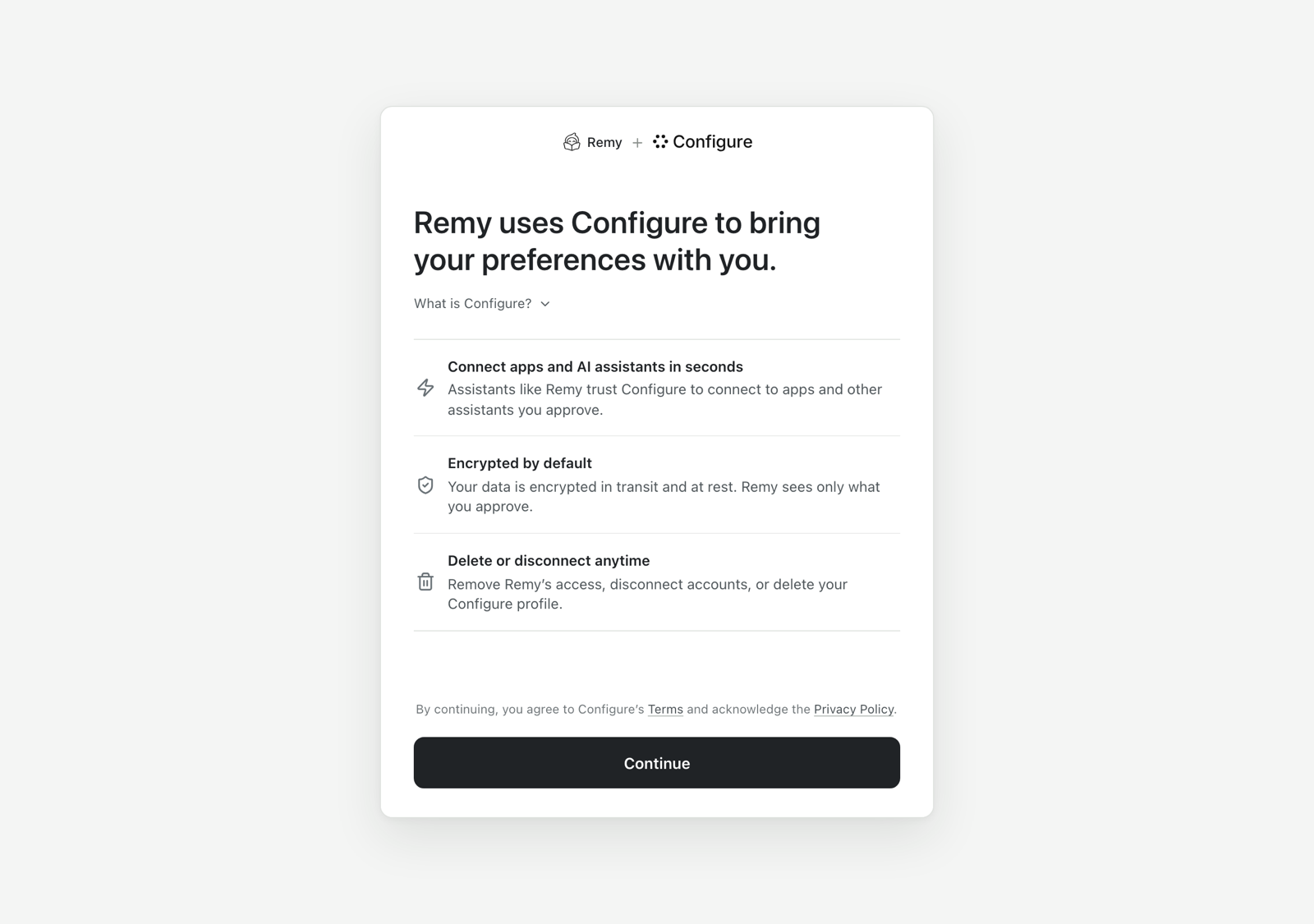
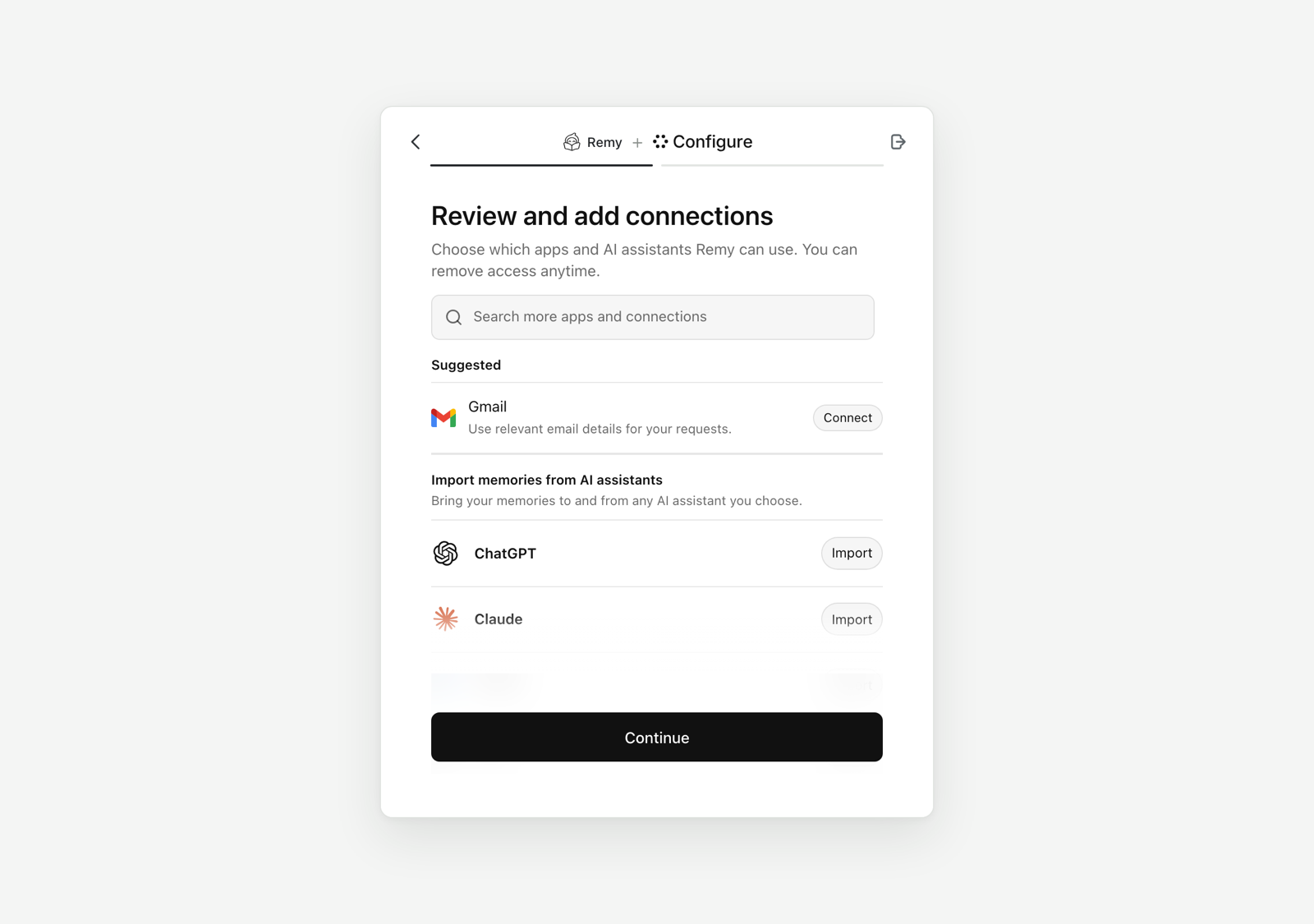
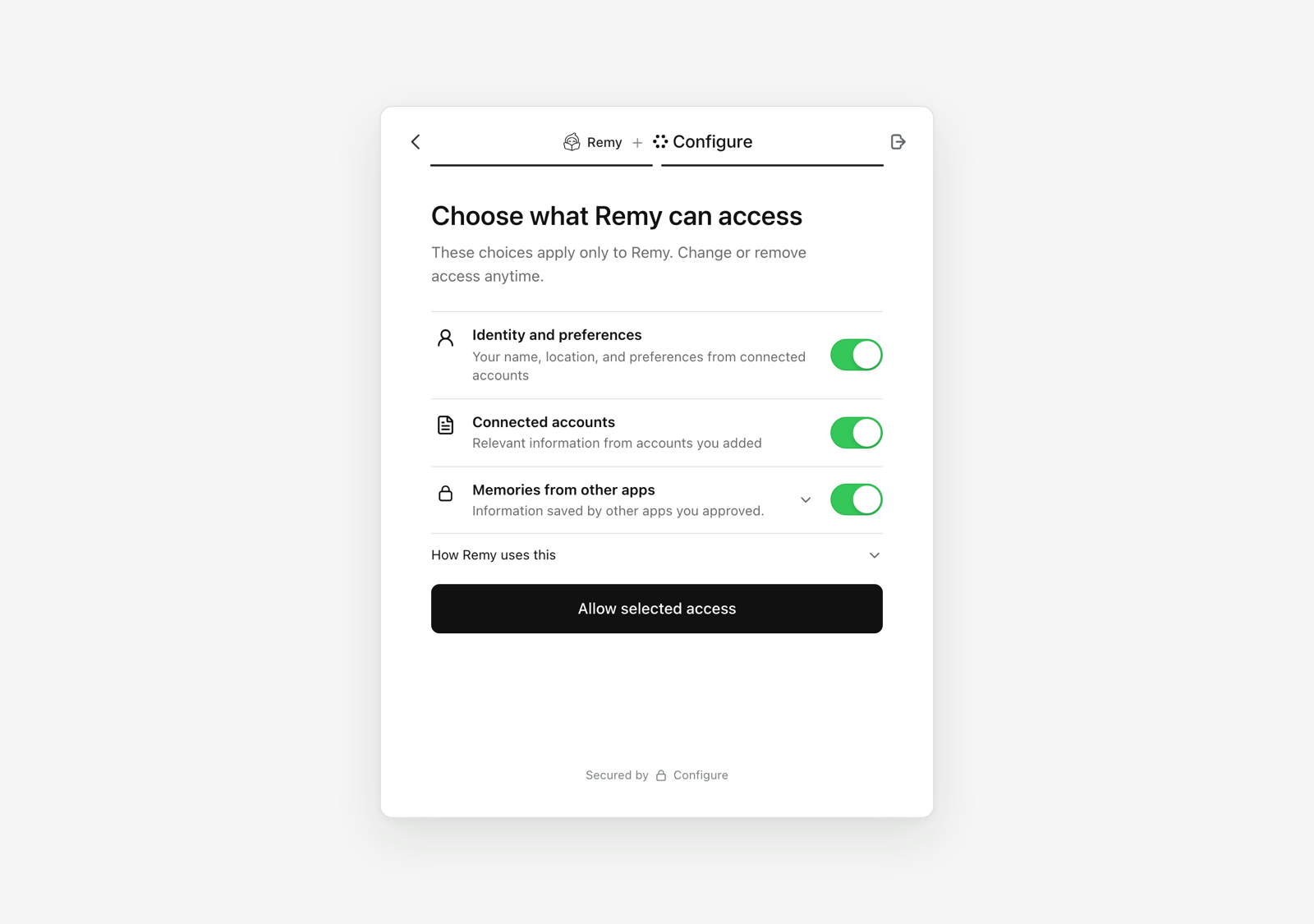
Then they land back in your chat. The card flips to its connected state, and from this turn on read() returns linked: true.
Your entry point should flip too, without a reload. The link answers its own status at ${connect_url}/status: pending until the user finishes, then approved, or expired once it has lapsed. Poll it every couple of seconds for a few minutes after the click, and stop on either answer.
js
// After the server answered the fixed message with the connect() result:
const statusUrl = `${connect.connect_url}/status`;           // the link's own status, never a URL you assembled
const started = Date.now();
const timer = setInterval(async () => {
  const { status } = await fetch(statusUrl).then((r) => r.json()).catch(() => ({}));
  if (status === "approved") {
    clearInterval(timer);
    await fetch("/api/connected", { method: "POST" });          // your server re-reads; the profile is the truth
    document.getElementById("connect").textContent = "Connected";
  }
  if (status === "expired" || Date.now() - started > 5 * 60 * 1000) clearInterval(timer);
}, 2500);ts
// POST /api/connected: the client says the flow finished; the profile says whether it did.
app.post("/api/connected", async (req, res) => {
  // force: they just came back from connecting, so the short "not connected"
  // cache from step 5 is exactly the answer that must not be reused here.
  const context = await contextFor(req.user.id, { force: true });   // null until read().profile.linked
  res.json({ connected: context !== null });
});
The same goes for the onboarding trip: its return route is the server-side half, and the polling is how a page that stayed open learns the same thing.
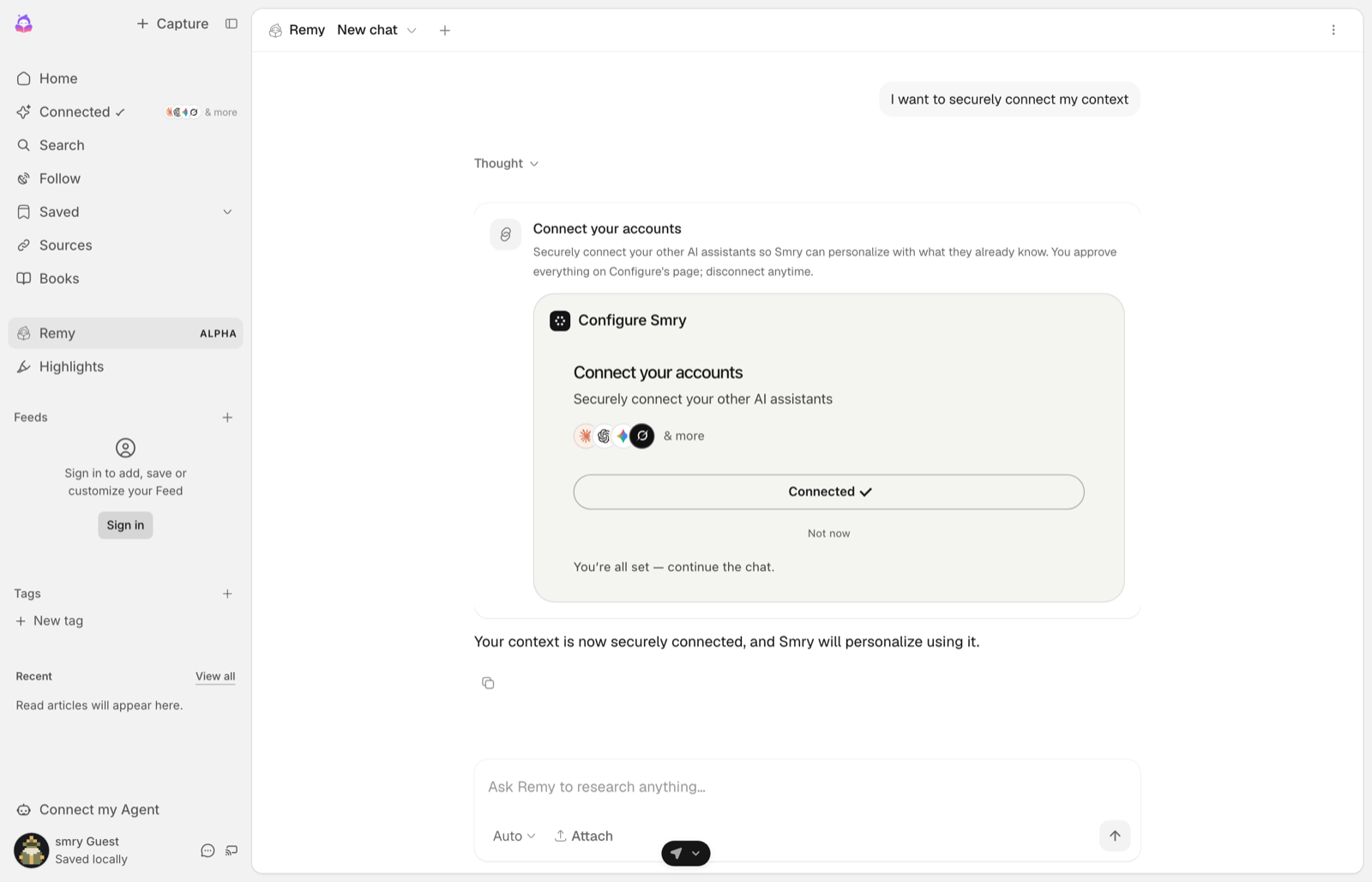
Not every approval comes back through that event. The user may approve in another tab, close the card and return an hour later, or send their next message while Configure's page is still open. Treat the click as the start of a window rather than a moment: remember when you minted a link, and while that window is open treat the next read as authoritative rather than trusting a cached "not connected".
Try it yourself. That link opens the same hosted flow as a user sees it, any time you want to walk through it.
Where the user lands afterwards
Configure sends the user onward automatically only to a destination it can vouch for. There are two ways a destination earns that, and a web app gets the first one for nothing:
- the browser's
Refererorigin matches the destination, which is what the defaultstrict-origin-when-cross-originpolicy sends, or - the destination's host is registered on your developer account.
Anything else is offered as a button with the host spelled out, and the user decides. A Configure page never forwards someone silently to somewhere it cannot vouch for.
When you pass returnUrl, you are naming the exact resource the flow belongs to, such as the thread or document they clicked from. When you pass nothing, Configure returns them to the page they clicked on, corroborated by the browser, with no setup at all. Both are supported; declare one when "the page they were standing on" is not precise enough, because a hub page can send them back somewhere that does not restore what they were doing.
WARNING
Register a host only when the browser cannot vouch for you: a native or headless client that sends no Referer, or a site that strips it with Referrer-Policy: no-referrer or same-origin, or a link marked rel="noreferrer". Register your own apex, which covers its subdomains, and never a shared host you happen to have a subdomain on. PATCH /v1/developer/me with allowed_return_hosts takes up to 20 bare hostnames such as example.com.
Two more things about minting that surprise people. Asking for a link again for the same user while the last one is still valid gives you that same link back, with a new returnUrl replacing the old one and no returnUrl keeping it. And client_name in the request body does not name the page: the consent screen shows the display name registered for your agent, along with your uploaded logo.
Not a chat? Onboarding and settings
Outside a chat there is no message to send and no card to mount. The same chip goes to a route on your server, the user goes to Configure's page, and Configure brings them back to your next screen with their profile ready to fill it in. That is one short page of its own: Add Configure to onboarding.
5. Keep their context current
Two jobs, both on your server, both deterministic.
Refresh every connected user's profile once a day, store it, and inject it on the first turn of every session. The profile is not yours alone: it grows every time the user talks to any agent they have connected, imports another assistant's memories, or connects a new app. A daily read is how your agent gets that growth. Once a day is the right cadence because an agent that does not know the user connected Gmail yesterday gets caught out in a way a slightly stale preference never does. Say so in your product, in a line like "Refreshed from your Configure profile today", so the user knows why your agent keeps up with them.
Do it when you read, not on a timer. A background sweep looks tidier and is the version that quietly stops working: it runs on one instance and not the others, or it does not survive a serverless cold start, or nobody ever calls the function that starts it. Checking an age on the way past cannot rot that way, because the same code path that needs the context is the one that refreshes it.
ts
const A_DAY = 24 * 60 * 60 * 1000;
const NOT_CONNECTED = 5 * 60 * 1000;

// Called on the first turn of a session. Returns fast when the stored copy is
// fresh, refreshes when it is not, and refuses to make the turn wait forever.
export async function contextFor(userId: string, { force = false } = {}) {
  const cached = await store.get(userId);                    // { text, refreshedAt } or null

  // Cache "not connected" as well as the profile itself. Most signed-in users
  // have not connected, and if only the hit is cached then every turn from
  // every one of them is a live read of a profile that is not there. Give the
  // miss a short life so someone who connects is picked up within minutes.
  const ttl = cached?.text ? A_DAY : NOT_CONNECTED;
  if (!force && cached && Date.now() - cached.refreshedAt < ttl) return cached.text;

  const read = await profileFor(userId).read({
    sections: ["identity", "preferences", "summary", "integrations"],
  });
  const text = read.profile.linked ? read.profile.format() : null;   // null until they connect
  await store.set(userId, { text, refreshedAt: Date.now() });
  return text;
}
What read() returns, in the shape every page on this site uses:
ts
const read = await profileFor(userId).read({ sections: ["identity", "preferences", "summary", "integrations"] });
read.profile.linked;                 // boolean: has this user connected
read.profile.identity;               // { given_name, family_name, email, email_verified, role, occupation, location, company_website, ... }
read.profile.summary;                // one paragraph
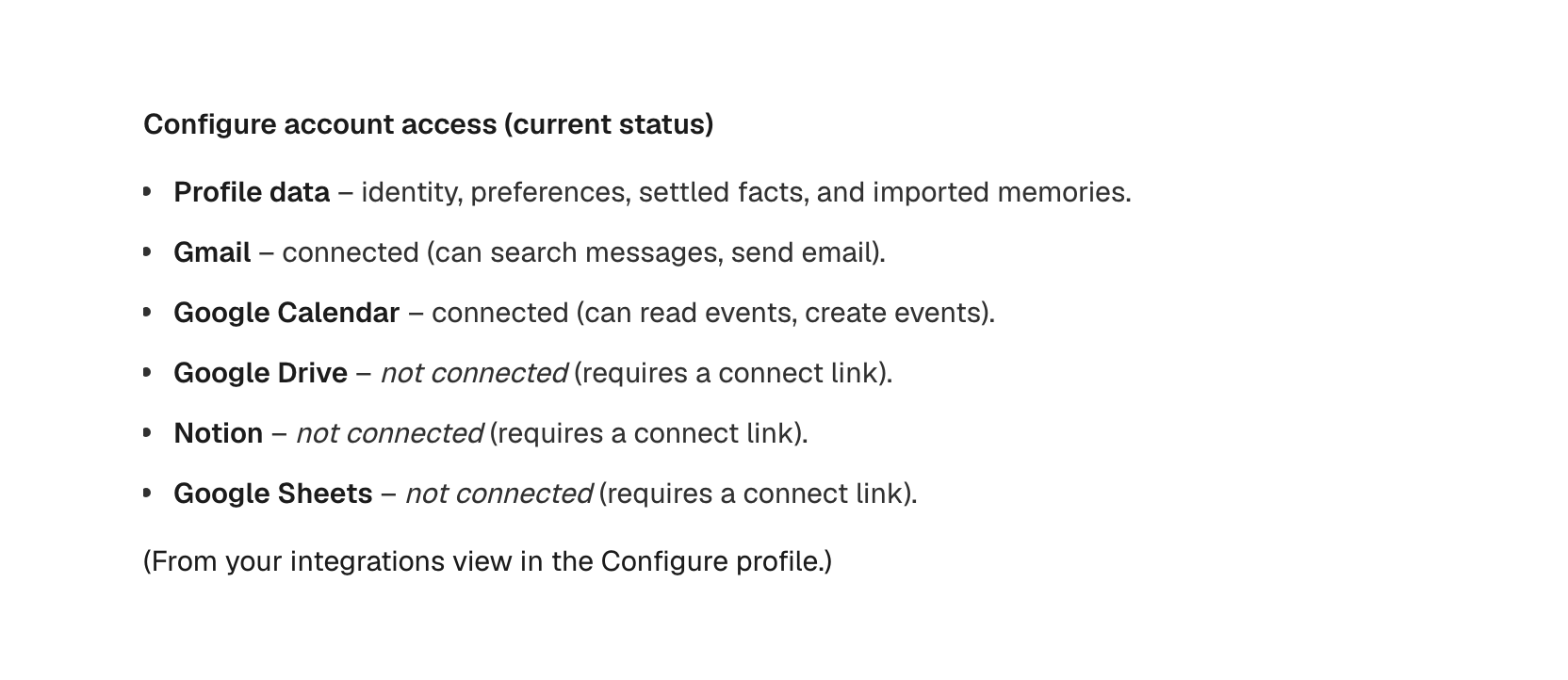
read.profile.integrations;           // { gmail: { connected }, calendar: { connected }, drive, notion, sheets }
read.profile.format();               // the whole thing as text for a system prompt
read.profile.format({ guidelines: false });  // the same without Configure's handling guidelines
Refresh once more when the user comes back from Configure's page, so their first session does not wait for tomorrow. Do that on the return, not when you mint the link. Clearing the cache at mint time looks equivalent and is not: a user who opens the card and closes it loses their context and pays for a read to get the same thing back, and a message sent while Configure's page is still open re-caches the profile from before they approved anything and pins that stale copy for a full day. Their import may still be distilling for a few minutes; a read that comes back thin is the import landing, not a failure.
ts
// First turn of every session, for a linked user.
const context = await contextFor(user.id);
const systemPrompt = context
  ? `${basePrompt}\n\n<user_context>\n${fence(context)}\n</user_context>`
  : basePrompt;                          // not connected yet: nothing to inject
fence is yours, and it is not optional: a profile carries text the user's other assistants wrote and text they pasted in, so it can contain your own closing delimiter and end the block early, putting everything after it into your system prompt as instructions. Trust and boundaries has the stripper and the two ways a naive one fails.
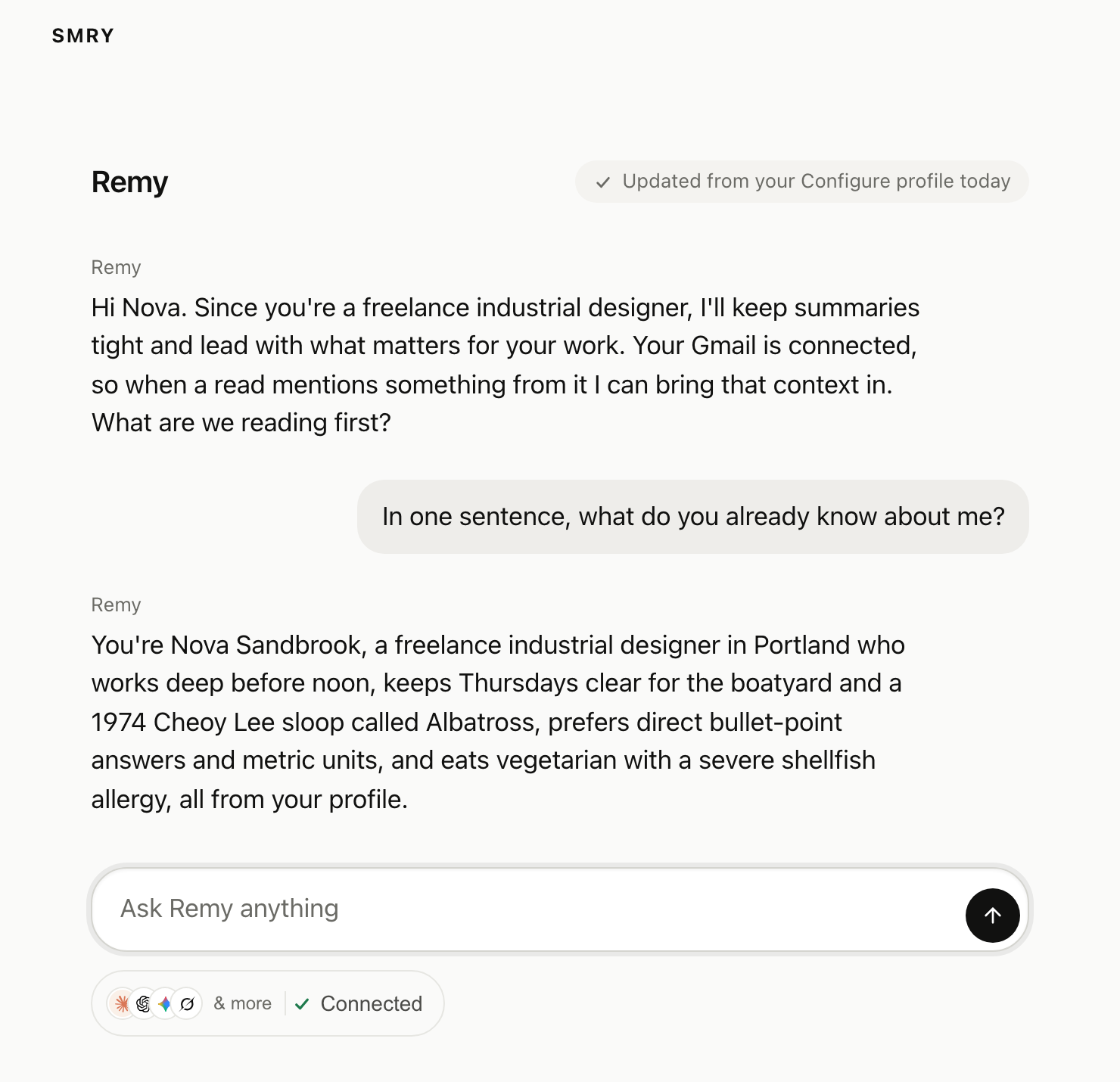
Commit every message at the end of every turn, including aborted turns, for every user. You do not need an "is this a Configure user" flag. Before a user connects, the profile lives in your own namespace, keyed by your externalId, and it migrates in place the day they link: nothing is lost and the id does not change. That is what makes a newly connected user's first turn already informed.
Never read the profile on a turn to decide whether to commit. linked is answered from the copy step 5 already keeps, and a read on every turn is the mistake that page exists to prevent.
ts
await profileFor(user.id).commit({
  messages: [
    { role: "user", content: userText },
    { role: "assistant", content: assistantText },
  ],
});
format() includes Configure's handling guidelines, about 2,400 characters telling the model not to invent personal facts. That is the default here because the guidelines are what make the context safe to inject; pass guidelines: false when you have your own. The Python SDK defaults the other way, off, so pass guidelines=True there when you want them.
Check the text before you inject it. On a profile with nothing in it yet, format() returns the guidelines and nothing else, measured at 2,375 characters, so an empty user arrives in the prompt as a block of Configure's instructions fenced as if it were facts about them. format({ guidelines: false }) returns an empty string in the same case, which is the easy thing to test.
A turn ends three ways: it finishes, the user stops it or closes the tab, and it throws. Only the first is obvious, and an aborted turn is often where the durable fact is, because the user said something and then walked away. If you stream, commit from the stream's own end callback rather than after the call returns, since that callback fires on all three:
ts
return result.toUIMessageStreamResponse({
  // Without this the end callback never runs when the user stops the answer or
  // closes the tab, and that exchange is dropped in silence. It is the whole
  // reason the callback can be trusted for aborts.
  consumeSseStream: consumeStream,
  originalMessages: turnMessages,   // so the callback sees the user's message, not only the reply
  onEnd: ({ messages }) => {
    // Never awaited: a commit must not delay the reader, and must not fail the turn.
    void commitTurn(user.id, messages).catch(() => {});
  },
});
That one line is the difference between "commits on every ending" and "commits when the user waits politely". Send only the halves that exist. An aborted turn frequently has no assistant text at all, and an empty message is rejected.
Truncate before you send; do not let the call throw. The SDK checks the bounds inside your process, before anything reaches Configure, so an over-long turn raises INVALID_INPUT locally. If the commit is fire-and-forget, as it should be, that throw is swallowed and the exchange is lost in silence, and long turns are the ones carrying the most about the user. Cut each message to the per-message cap and the packet to the call cap yourself.
commit accepts up to 20 messages, up to 16,000 characters per message and 50,000 across the whole call. The result carries status, processing when the commit was queued or completed when it ran inline, plus facts_written and rejected_memories once it has run; pass sync: true to always wait for them.
Configure being slow or down must not break your chat. This is the one rule a real integration adds that a quickstart usually omits. Put a timeout on the read and let the turn continue without context rather than failing it, and never let a commit throw into your response path:
ts
const context = await Promise.race([
  contextFor(user.id),
  new Promise((resolve) => setTimeout(() => resolve(null), 1500)),   // your budget, not ours
]).catch(() => null);                                                 // no context beats no answer
Every Configure call your turn makes deserves the same treatment. A reader whose profile is unreachable should get an ordinary answer, not an error.
WARNING
Do not leave the refresh or the commit to the model. Measured on this setup: with the tools available and nothing forcing their use, a small model called read zero times and commit zero times across nine ordinary turns. Your server guarantees the baseline. What the model does on top of that is upside.
6. Give the model the Configure tools
The daily refresh gives the model a good starting picture. This is how it gets the rest: the configure_* tools over MCP, through the API, with a session your server mints per user.
Mint it when the model first reaches for a tool, not at the top of every turn. Minting, opening the transport, and listing the catalog is three round trips before a single token streams, on every message, whether or not the model touches Configure at all, and most turns do not. One shipped integration measured half a second added to every turn that way, and readers called it slow. Take the definitions from profile.tools(), which the SDK already has, and mint the session inside the first tool call, then reuse it for the rest of the turn. A session is a URL and a bearer token, so anything that speaks MCP over Streamable HTTP can hold the tools. Four shapes below; the last one is any MCP client.
Anthropic is the first tab: @anthropic-ai/sdk 0.123 or later, the mcp-client-2025-11-20 beta, and both halves of the wiring, the server list and a matching toolset. OpenAI takes the session as a remote MCP tool. Vercel AI SDK takes it as an MCP client. Anything else takes the URL and the bearer.
OpenAI. The Responses API takes the same session as a remote MCP tool. The bearer goes in authorization.
Vercel AI SDK. The session goes in as an MCP client with the bearer in its headers. Close it when the turn ends.
Any MCP client. Anything that speaks MCP over Streamable HTTP with a bearer, here the official TypeScript SDK:
All four samples belong in server/turn.ts.
ts
const session = await profileFor(user.id).mcpSession();

const response = await anthropic.beta.messages.create({
  model: "claude-opus-5",
  max_tokens: 16000,
  betas: ["mcp-client-2025-11-20"],
  system: systemPrompt,
  messages: turnMessages,
  mcp_servers: session.mcp_servers,                 // url, name, authorization_token
  tools: session.mcp_servers.map((s) => ({          // every server needs a matching toolset
    type: "mcp_toolset",
    mcp_server_name: s.name,
  })),
});
ts
const session = await profileFor(user.id).mcpSession();

const response = await openai.responses.create({
  model: "gpt-5",
  instructions: systemPrompt,
  input: turnInput,
  tools: session.mcp_servers.map((s) => ({
    type: "mcp",
    server_label: s.name,
    server_url: s.url,
    authorization: s.authorization_token,
    require_approval: "never",
  })),
});
ts
import { streamText, stepCountIs, consumeStream } from "ai";
import { createMCPClient } from "@ai-sdk/mcp";

const [server] = (await profileFor(user.id).mcpSession()).mcp_servers;
const configureMcp = await createMCPClient({
  transport: { type: "http", url: server.url, headers: { Authorization: `Bearer ${server.authorization_token}` } },
});

const result = streamText({
  model,
  system: systemPrompt,
  messages: turnMessages,
  stopWhen: stepCountIs(5),
  tools: { ...yourTools, ...(await configureMcp.tools()) },
  // streamText returns before a token is read, so closing the transport in a
  // finally around this call would tear it down mid-answer. Close on the way out.
  onFinish: () => { void configureMcp.close(); },
  onError: () => { void configureMcp.close(); },
});

return result.toUIMessageStreamResponse({ consumeSseStream: consumeStream });
ts
import { Client } from "@modelcontextprotocol/sdk/client/index.js";
import { StreamableHTTPClientTransport } from "@modelcontextprotocol/sdk/client/streamableHttp.js";

const [server] = (await profileFor(user.id).mcpSession()).mcp_servers;
const client = new Client({ name: "your-app", version: "1.0.0" });
await client.connect(
  new StreamableHTTPClientTransport(new URL(server.url), {
    requestInit: { headers: { Authorization: `Bearer ${server.authorization_token}` } },
  }),
);
const { tools } = await client.listTools();    // 16 tools for a user session
Anthropic. Anthropic's API rejects mcp_servers without a matching mcp_toolset, so keep both halves.
OpenAI. Prefer this over running the calls yourself. toOpenAIFunctions(profile.tools()) plus profile.executeTool(call) also works, but on a profile keyed by externalId that path serves the profile tools only; connector tools refuse with a connect link until they are reached through the session or a user token.
Vercel AI SDK. toAISDKTools(profile) from configure/ai-sdk also exists. It runs calls through the SDK, so on a profile keyed by externalId it serves the profile tools only; the session above is what reaches connected apps.
Any MCP client. Hand tools to whatever model loop you run and route its calls to client.callTool. One session per user; the bearer is the identity, and no tool takes a user id as input.
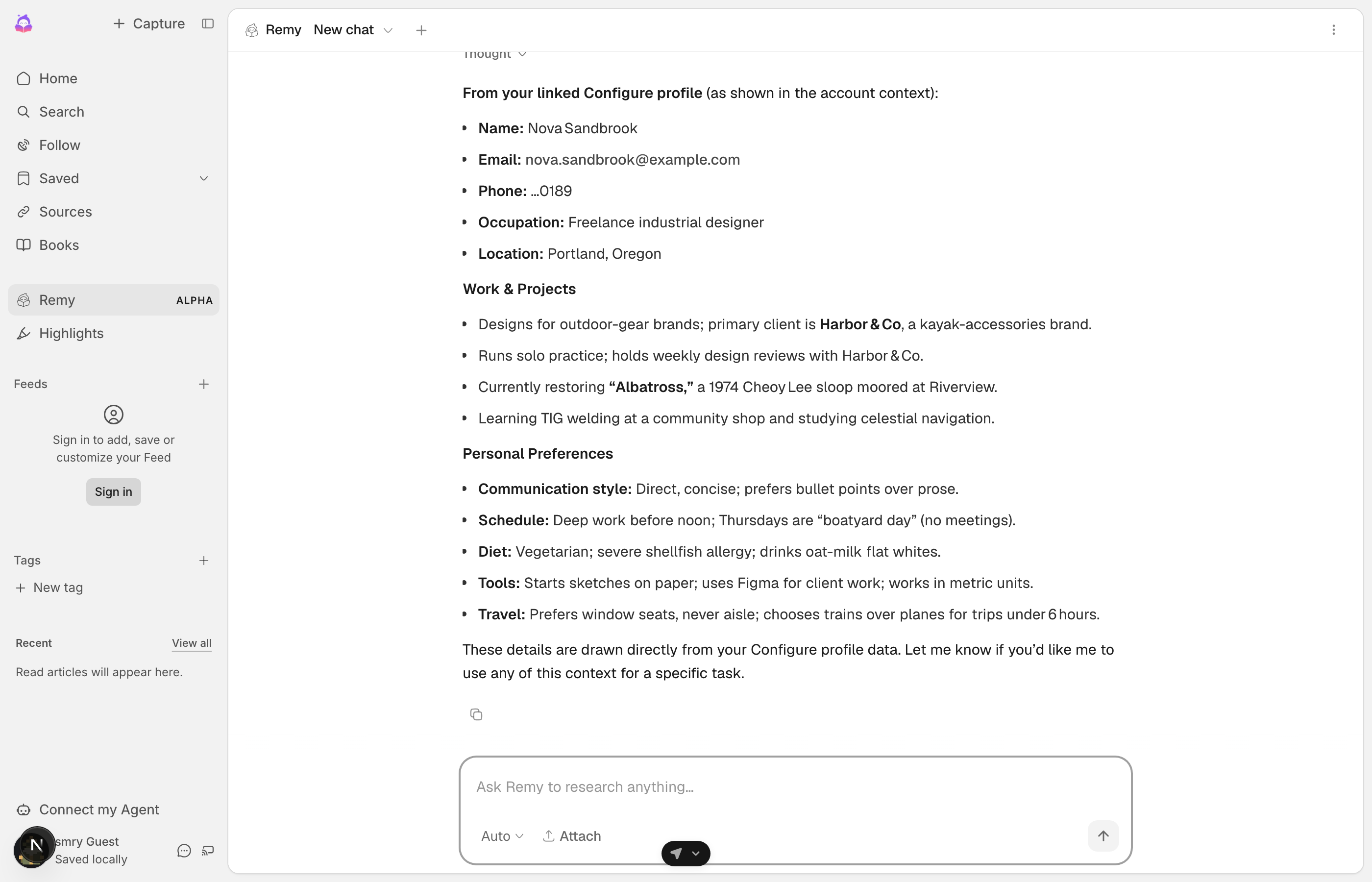
With the tools in hand the model reaches for configure_profile_search when the injected context does not answer a question, saves something durable with configure_profile_remember, and reads the user's mail or week with configure_gmail_search and configure_calendar_get. Connected apps come free: the day a user connects Gmail, Calendar, Drive, Notion, or Sheets, those tools are on the same server with no second integration and no deploy.
Try it in the sandbox
Rehearse the whole loop before a real user touches it. This endpoint is unauthenticated on purpose and per-IP rate limited, so it works before you have an account:
bash
curl -X POST https://api.configure.dev/v1/sandbox/provisionYou get sk_test_ and pk_test_ keys, a test agent, and a synthetic user, Nova Sandbrook, external id sandbox-user, who is already linked with Gmail and Calendar connected. Point your .env at the test key, run the six steps as her, and watch the tool list grow from eight tools on your key to sixteen on her session; the MCP page walks that. The response also carries her test phone number and its fixed code, which is how you go through the hosted flow yourself: every Configure page accepts them on the test plane and never sends a text.
Then rehearse the moments that matter, with POST /v1/sandbox/simulate and your sk_test_ key:
| Scenario | What it does | What to watch |
|---|---|---|
user_unlinked | Puts Nova where every real user starts: not connected, your agent not yet approved. | Click your chip. The card shows Connect. Finish the flow with her number and code, and it flips to Connected. |
profile_grew | Adds memories saved by another agent she uses, and one imported from ChatGPT. | Your next read() is different from the last one. This is what the daily refresh is for. |
gmail_token_expired | Makes her Gmail connection fail the way a revoked token does. | Your tool_not_connected handling, and the link in its payload. |
POST /v1/sandbox/reset puts her back to her seeded state after any of them. Return URLs on http://localhost are accepted on the mint, so the onboarding trip and its return work end to end on your machine.
Prefer to start from a running app? configure-quickstart has three clone-and-run examples on this exact pattern: a chat app, a product onboarding, and an SMS agent.
Handle errors
The failures you will see, in one place:
| What you see | What it means | What to do |
|---|---|---|
authorization_required | The user is not connected. It never means "no data on this user". | The result carries a connect_url. Mount the card, or show the link verbatim. |
approval_required | This user linked a real Configure account, so your key stopped being authority over their profile. They have to approve your agent. | Call profile.connect() and show the card. See Your own users. |
-32009 commit_required | A read left an obligation this turn has not cleared. | Commit the turn, then retry. configure_connect is not the fix. |
tool_not_connected | The user has not connected that app, or its token was revoked. | On an externalId profile the call returns the connect payload; on a token profile it throws with suggestedAction: "reconnect" and no link, so mint one with connect({ app }). See Connectors. |
429 rate_limited | Too many calls from this account in a short window, not per user. The body carries retry_after in seconds. | Back off and reuse the link you already have; each one stays valid until expires_at. |
402 PAYMENT_REQUIRED | Your account is over its monthly read quota. This is your limit, not the user's connection. | Do not offer a connect link: the user is connected and the link will not help. Fix the plan, and fail open so the turn still answers. |
Match on statusCode, not on code alone, when you need to tell these apart. The SDK maps both 401 and 403 to AUTH_REQUIRED, and they are opposite problems: 401 is your key, 403 is this user not having approved you. An integration that branches on code and caches the result will mark every reader unconnected the day a key rotates.
TIP
That is the whole integration. Your app offers it in one click, the user approves on Configure's page, and your agent knows them from the first turn and learns from every conversation.