---
canonical_url: https://docs.configure.dev/quickstart
last_updated: 2026-11-05
---
# Connect your app to your users' context
Configure connects your agent to the user's other agents, apps, and chats. By the end of this page, a user clicks a chip in your app, brings their context on Configure's page, and comes back to an agent that already knows them. Steps 1 to 6 are code on your server. Step 7 gives the model Configure's tools.
You need Node.js 18 or later. You do not need a Configure account to start: the [sandbox](#try-it-in-the-sandbox) gives you keys and a test user in one call.
## 1. Install the SDK and get your credentials
```bash
npm install configure
npx configure setup --users
```
****Using a coding agent?** Paste `Read https://configure.dev/skill.md and add Configure to this project.` into Claude Code, Cursor, or Codex. It runs setup and every step on this page. See [Skills](https://docs.configure.dev/skills.md).**
Setup signs you in and writes your credentials to `.env`. No account yet? Skip setup and call the [sandbox](#try-it-in-the-sandbox) instead, then put the `secret_key` and `agent` it returns in `.env` as `CONFIGURE_API_KEY` and `CONFIGURE_AGENT`.
| Variable | What it is |
| --- | --- |
| `CONFIGURE_API_KEY` | Secret key, `sk_` prefix. Server only. Never send it to a browser. |
| `CONFIGURE_AGENT` | Your agent handle: lowercase letters, digits, and hyphens, 2 to 63 characters. Identifies your app on every request. |
| `CONFIGURE_PUBLISHABLE_KEY` | Publishable key, `pk_` prefix. Safe in browser code. Not used on this page. |
| `CONFIGURE_OAUTH_CLIENT_ID`, `CONFIGURE_OAUTH_CLIENT_SECRET` | The OAuth client for [Sign in with Configure](https://docs.configure.dev/variations.md#sign-in-with-configure). Server only. Not used on this page. |
This page needs two of them in production: the secret key and the agent handle. Step 6 adds a third, the webhook secret. Give staging its own key so a test user never writes to a real user's context.
Create one client for your server, and one profile handle per user, keyed by the id your product already uses:
```ts [server/configure.ts]
import { Configure } from "configure";
export const configure = new Configure({
apiKey: process.env.CONFIGURE_API_KEY,
agent: process.env.CONFIGURE_AGENT,
});
export const profileFor = (userId: string) =>
configure.profile({ externalId: userId });
```
`externalId` is your user id. The user never sees it. When they connect, Configure links their account to it. Use an id that lasts longer than a session, such as your account id. Never use a cookie or a session id: the next visit looks like a new user, and their context is lost. For visitors without an account, use [Sign in with Configure](https://docs.configure.dev/variations.md#sign-in-with-configure) as the account.
These names on this page are yours: `app` is your Express (or similar) server, `req.user` is the user your sign-in put on the request, `store` is your cache of one value per user, `refreshContext` and `contextFor` are the helpers in step 6, `basePrompt` is your existing system prompt, and `turnMessages`, `userText` and `assistantText` are the turn your chat is handling. Server code is labeled with a file under `server/`, and browser code with a file under `client/`.
## 2. Add the chip
Add a chip or button that links to a route on your server. Label it with what the user gets, such as **Connect** or **Personalize with Configure**. Put it where the user decides to share context with you: under the composer, in an empty chat, in onboarding, or in settings.
```html [client/app.html]
Connect
```
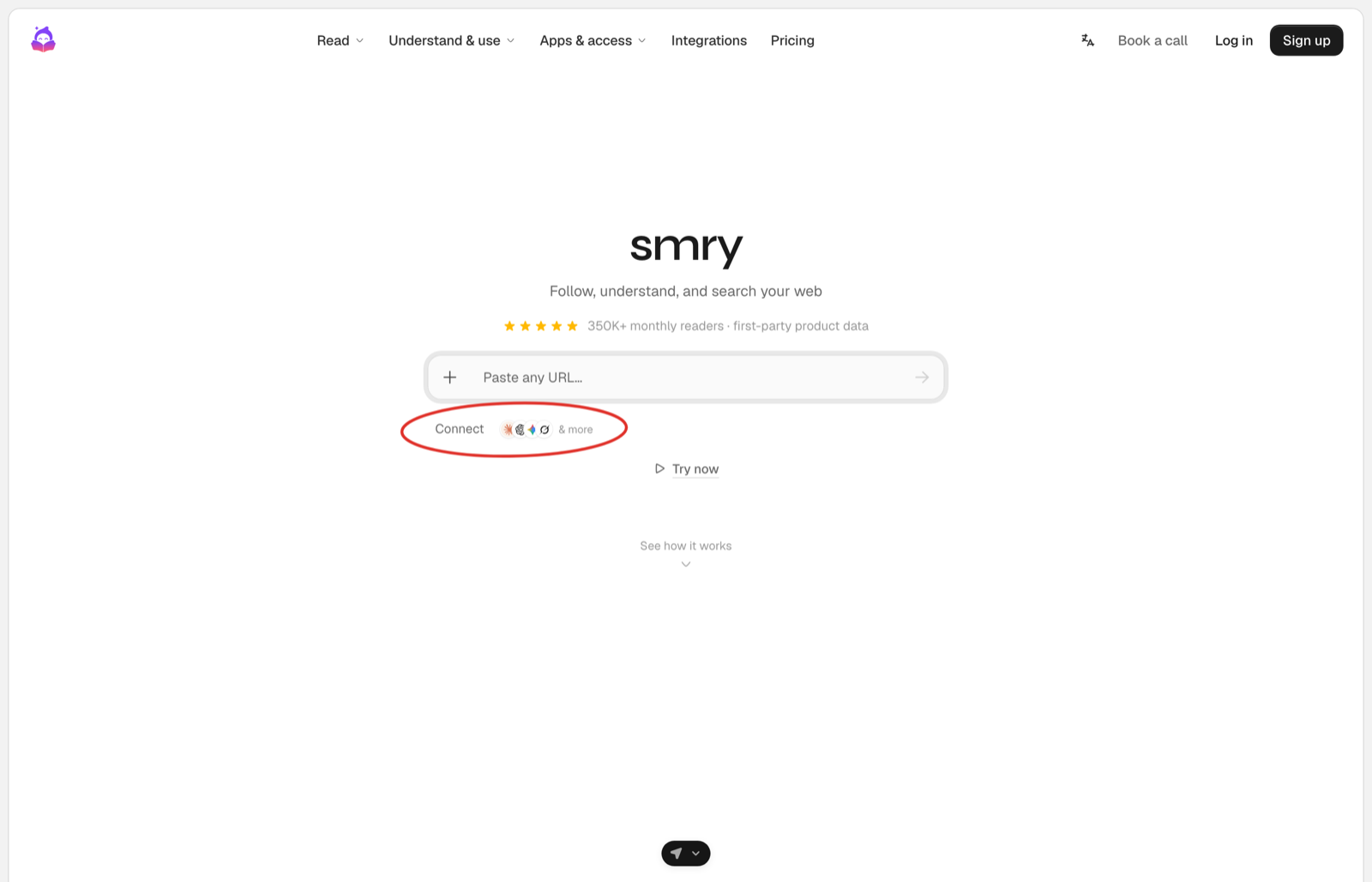
The chip under the composer on the home page. One click and the user is on Configure's page.
The chip only links to the route in step 3. Configure's own buttons, which open Configure's page inside yours, are on [Components](https://docs.configure.dev/components.md).
## 3. Send the user to Configure
The route mints a link for this user and redirects to it. `returnUrl` is where Configure sends them when they finish.
```ts [server/configure-routes.ts]
import { profileFor } from "./configure";
const RETURN_URL = "https://yourapp.com/configure/return"; // a constant, never from the request
// The chip in step 2 links here.
app.get("/configure/start", async (req, res) => {
const connect = await profileFor(req.user.id).connect({ returnUrl: RETURN_URL });
res.redirect(connect.connect_url!); // always set on a minted link; Configure's page, then back to RETURN_URL
});
```
Three rules:
- **Mint the link when the user clicks.** Links are per user and expire at `expires_at`. Never build a Configure URL yourself: `profile.connect()` mints it. Asking again for the same user while the last link is still valid gives you that same link back, with the new `returnUrl`.
- **`returnUrl` is a constant.** It must be `https`, even while you develop: Configure refuses `http://localhost`. Locally, put a tunnel in front of your app, such as `cloudflared tunnel --url http://localhost:3000`, and use the address it prints. Never build it from the request, or your route becomes an open redirect.
- **Most apps never register a host.** Configure sends the user straight to `returnUrl` when the browser's `Referer` origin matches it, which the default `strict-origin-when-cross-origin` policy sends, or when its host is in `allowed_return_hosts` on your developer account. Otherwise the user sees a button that names the host, and clicks it to continue.
**Register a host only when the browser sends no `Referer`: a native or headless client, a site with `Referrer-Policy: no-referrer` or `same-origin`, or a link marked `rel="noreferrer"`. Register your own apex, which covers its subdomains. Never register a shared host. `PATCH /v1/developer/me` with `allowed_return_hosts` takes up to 20 bare hostnames such as `example.com`. This list is separate from `npx configure add origin`, which registers an OAuth callback and has no effect here.**
The result has other fields you can ignore here: `connected` says whether the app you asked for is already connected, `livemode` says whether this is the test plane, `mcp_result` is what an MCP host renders as Configure's card, and `instructions` is written for agents.
`connect()` options, all optional. Over REST they are snake_case. The [API reference](https://docs.configure.dev/reference/api.md#mint-a-connect-link) lists the rest.
| SDK | REST | What it does |
| --- | --- | --- |
| `returnUrl` | `return_url` | Where Configure sends the user afterwards. `https` only. |
| `app` | `app` | Ask for one app: `gmail`, `calendar`, `drive`, `notion`, or `sheets`. The page opens on that app. Outlook has no `app` value: the user connects it from Configure's page. |
| `purpose` | `purpose` | One line shown to the user about why. |
`client_name` in the request body does not change the page. Configure's pages show your agent's registered display name and logo.
## 4. The user brings their context to Configure
Configure's page does the rest, with your app's name in its title. You never handle a credential, a phone number, or an export. Agents can also connect directly over [MCP](https://docs.configure.dev/mcp/overview.md). An import is one part of connecting: connected agents keep adding context after it.
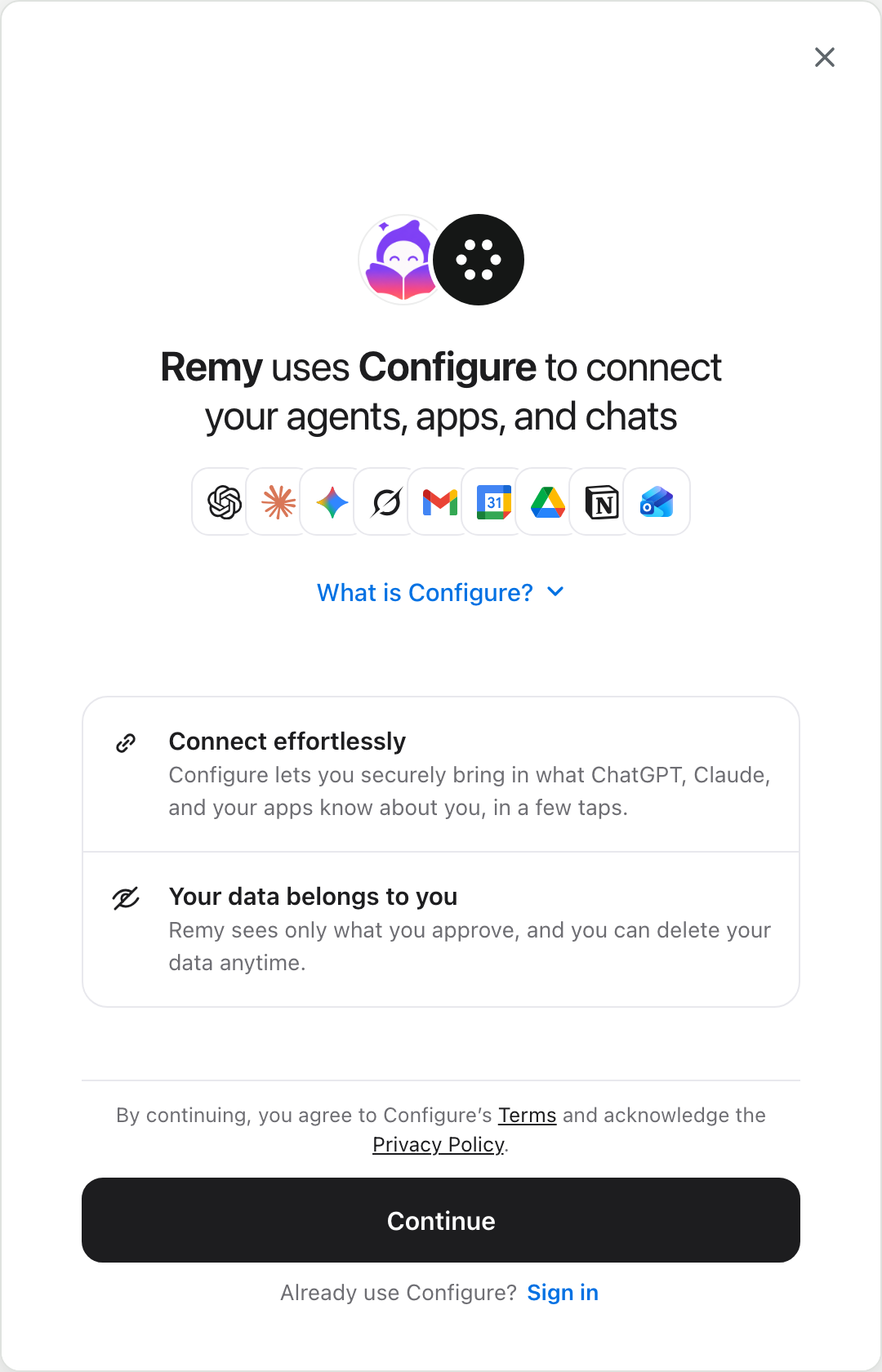
1. Your logo next to Configure's, and your app's name in the title. The user taps Continue.
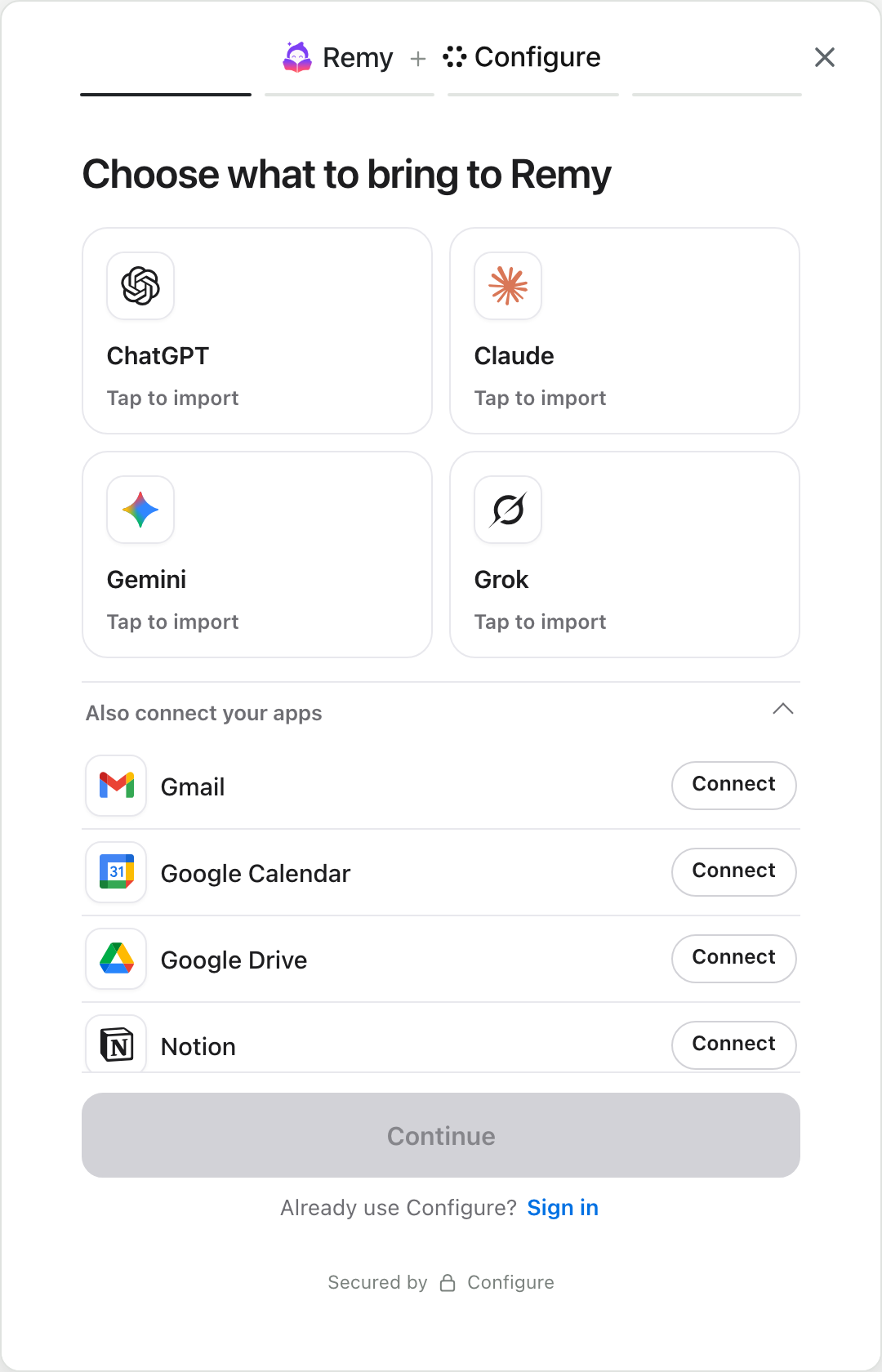
2. Import an assistant (ChatGPT, Claude, Gemini, or Grok) or connect an app (Gmail, Calendar, Drive, Notion, or Outlook). Continue unlocks after one.
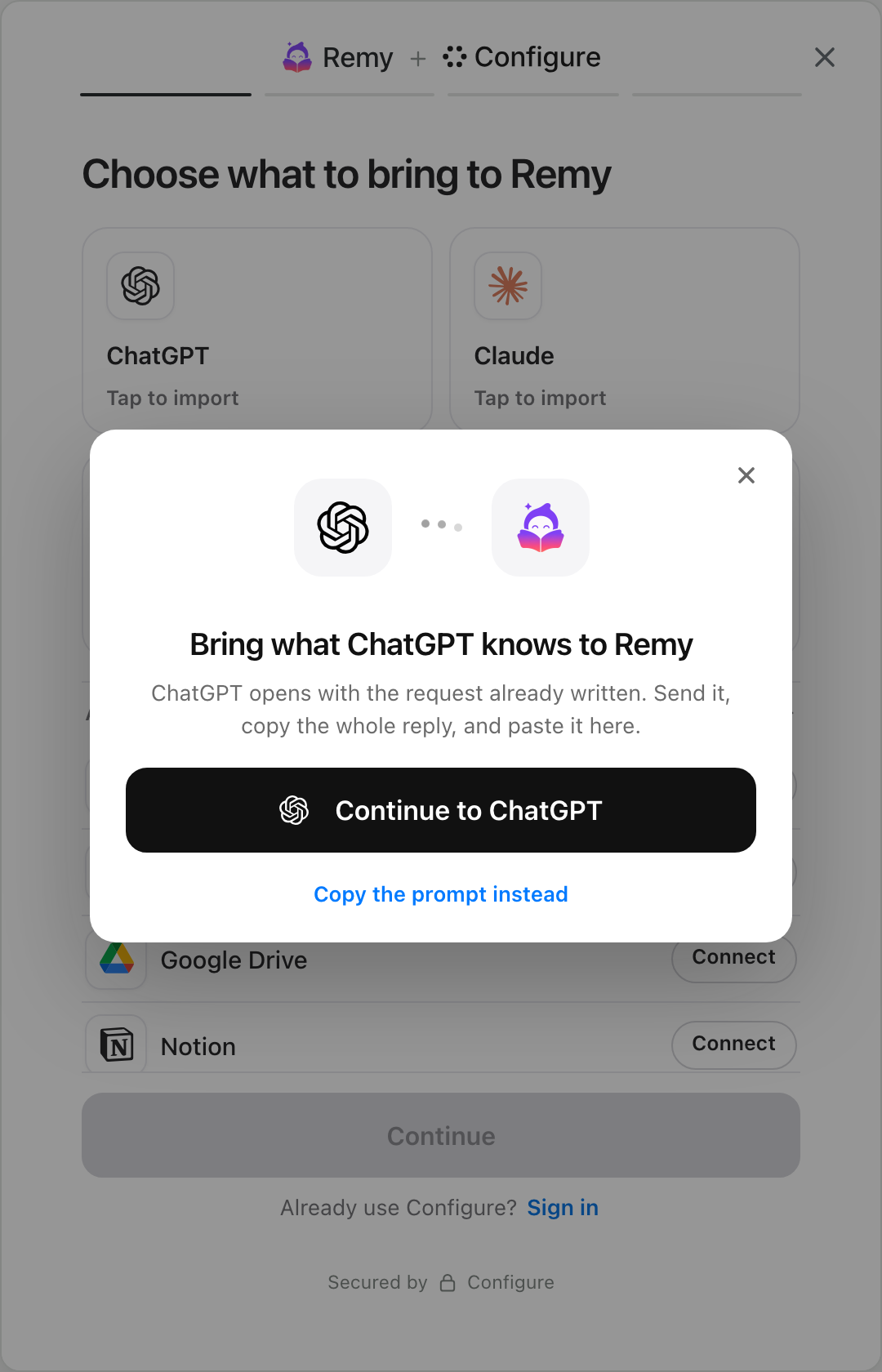
3. An import. Configure opens the assistant with the export request written for the user, and checks what they paste back.
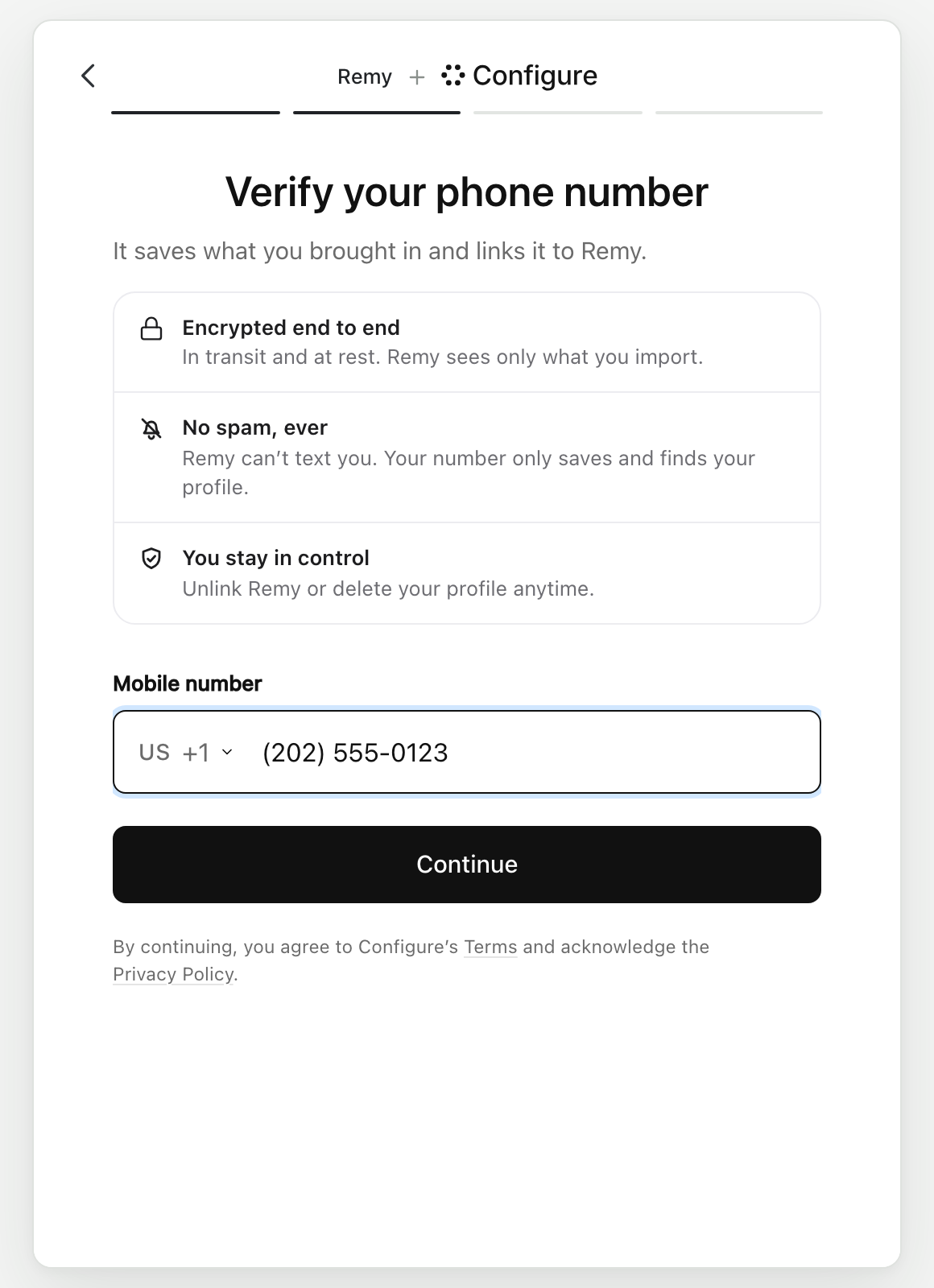
4. A phone number. Other apps that use Configure find the same person by it.
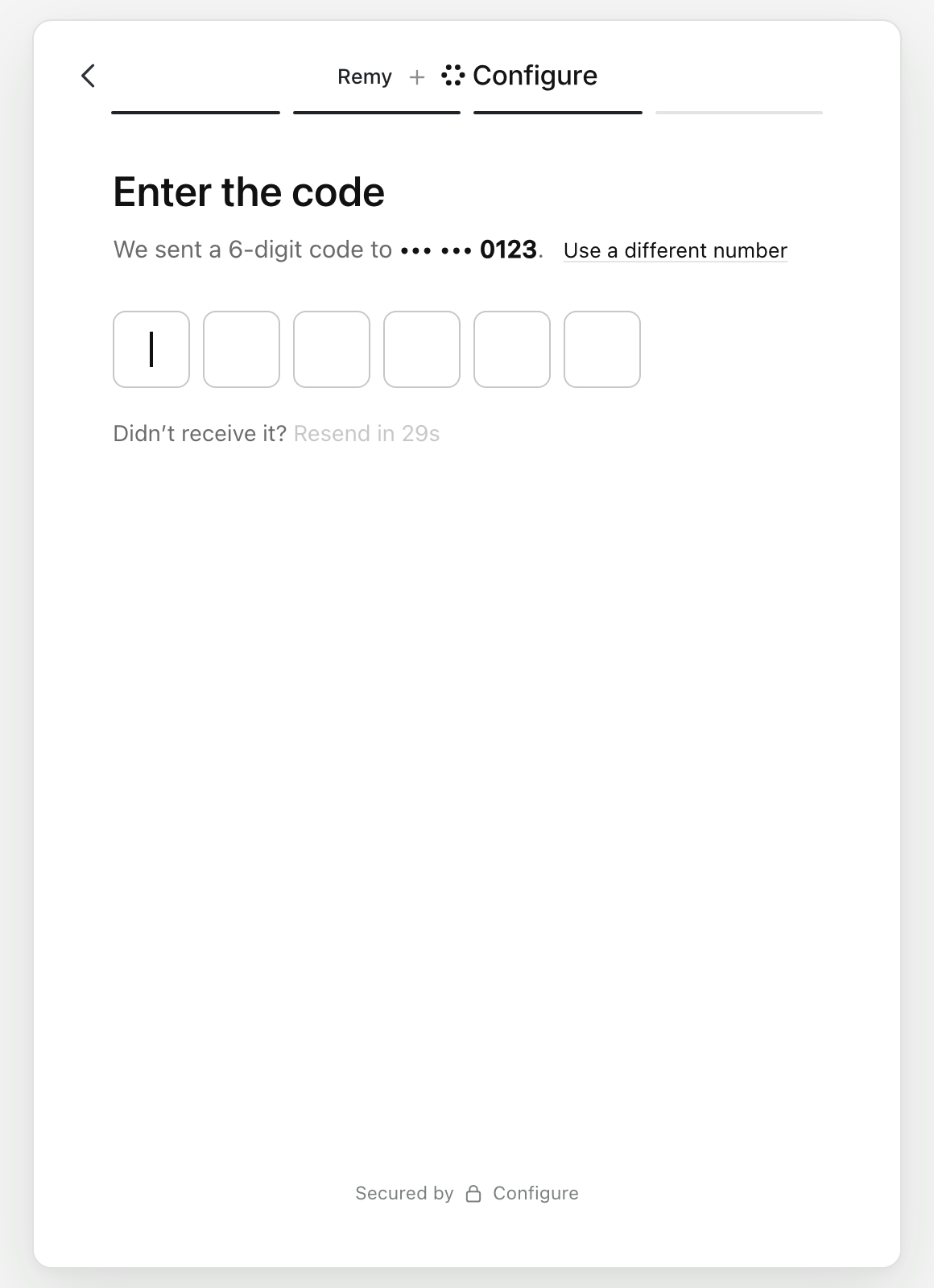
5. The code. Entering it saves what the user brought to their Configure account and approves your app.
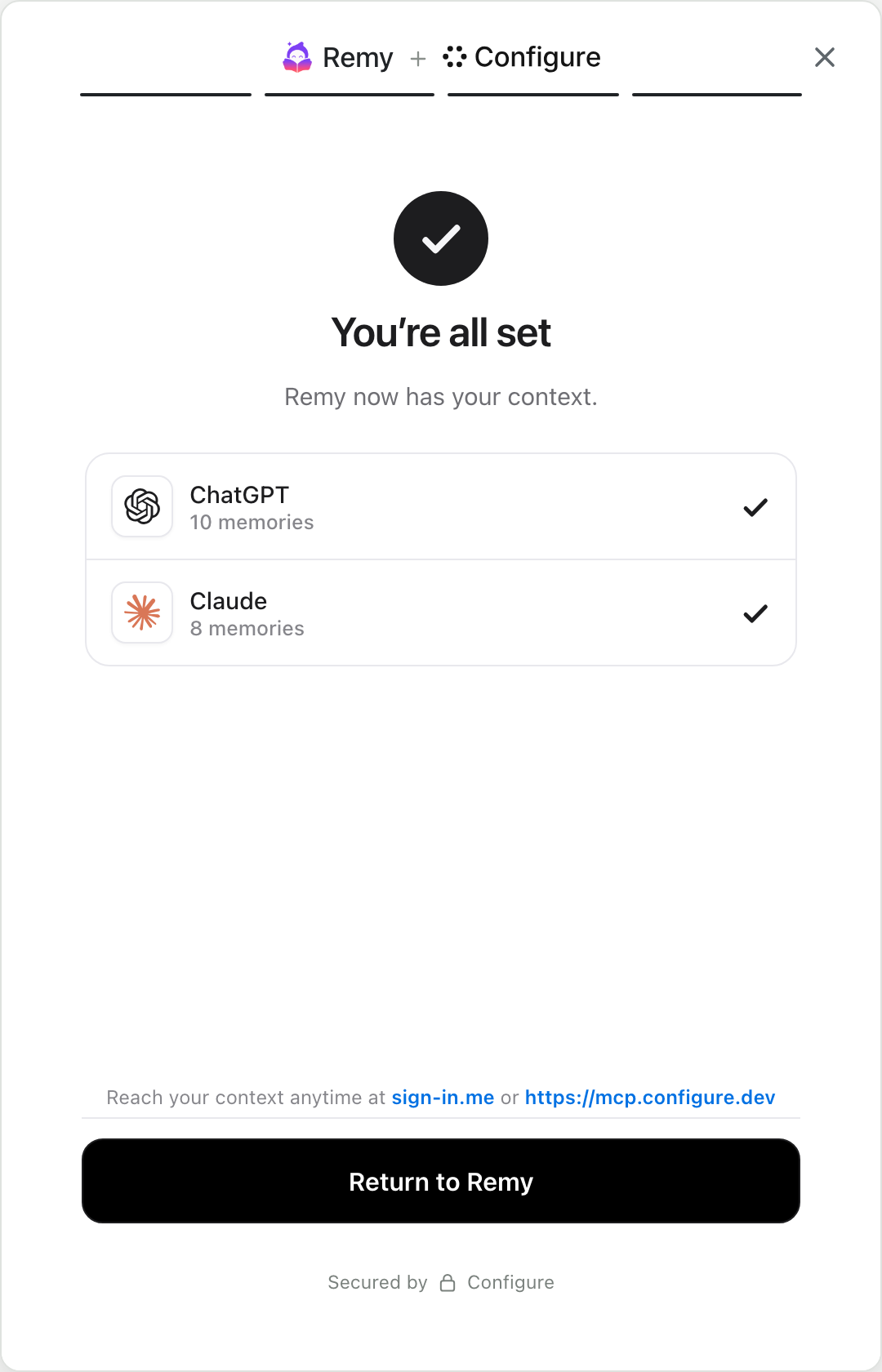
6. The receipt. What came in, then back to your returnUrl.
There is no permissions screen. Finishing the flow approves your app. The user can narrow or revoke access later on their Configure profile. A user who already has a Configure account taps **Sign in** on the first screen and enters their phone number and code. A user who is already signed in to Configure in that browser skips the first screen.
The page asks for a mailbox only when you require one. [What the hosted flow asks for](https://docs.configure.dev/hosted-flow.md) has every screen and how to require an app or an assistant.
**[Try it yourself](https://sign-in.me/chatgpt).** That link opens Configure's page as a user sees it.
## 5. Bring them back
Configure sends the user to `RETURN_URL`. The return route reads their context, stores it (step 6), and sends them to the chat.
```ts [server/configure-routes.ts]
// Configure sends the user here when they finish.
app.get("/configure/return", async (req, res) => {
const context = await refreshContext(req.user.id); // step 6: reads and stores the profile; null until they connect
if (!context) return res.redirect("/?configure=not-finished"); // they closed Configure's page early
res.redirect("/chat"); // their first chat starts with their context
});
```
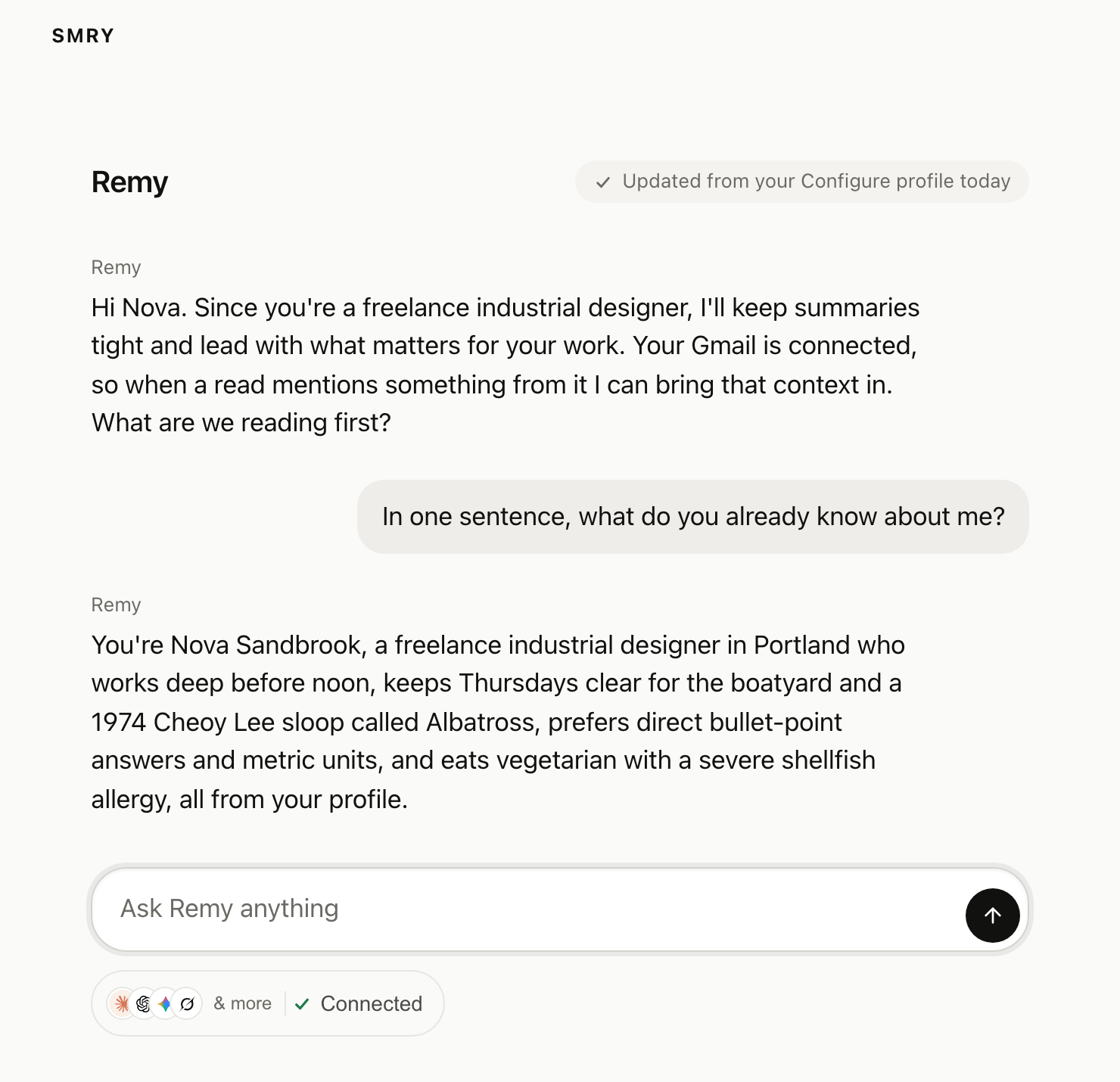
Back in Remy. The chip now reads Connected, and Remy's first message already knows Nova.
Two rules:
- **Trust the user's context, not the URL.** Anyone can type the return address into a browser. `refreshContext` reads `profile.linked`, and the route decides from that.
- **Refresh on the return, not when you mint the link.** A user who opens Configure's page and closes it has not changed anything. A fresh import can take a few minutes to process, so a thin first read is normal. The webhook in step 6 tells you when the rest arrives.
To show a welcome screen that lists what the user brought, or to pre-fill a form from their context, see [Onboarding](https://docs.configure.dev/onboarding.md).
## 6. Keep their context current
Three jobs, all on your server.
**Store each user's context, and re-read it when Configure says it changed.** Their context keeps growing after the user connects: they talk to another connected agent, import memories, or connect an app. Configure tells your server when that happens, with a signed `profile.updated` webhook. Your server re-reads their context then, and injects the stored copy on the first turn of every session. Nothing polls, and a turn never waits on Configure.
```ts [server/context.ts]
const A_WEEK = 7 * 24 * 60 * 60 * 1000;
// Reads the profile and stores it as text. The webhook calls this when the
// profile changes, and the return route (step 5) when the user comes back.
export async function refreshContext(userId: string) {
const read = await profileFor(userId).read({
sections: ["identity", "preferences", "summary", "integrations"],
});
const text = read.profile.linked ? read.profile.format() : null; // null until they connect
await store.set(userId, { text, refreshedAt: Date.now() });
return text;
}
// First turn of a session: the stored copy, which the webhook keeps current.
export async function contextFor(userId: string) {
const cached = await store.get(userId); // { text, refreshedAt } or null
if (cached && Date.now() - cached.refreshedAt < A_WEEK) return cached.text;
return refreshContext(userId); // never read, or a week without an event: read now
}
```
Register the webhook once per environment. A `sk_test_` key has its own endpoint, which receives only test users. The URL must be `https` on a public host. In development, put a tunnel in front of your local server, for example `cloudflared tunnel --url http://localhost:3000`, and register the address it prints.
```ts [scripts/configure-webhook.ts]
import { configure } from "../server/configure";
// .then, not top-level await, so it runs in a CommonJS project too.
configure.webhooks.set({ url: "https://your-app.com/configure/webhook" }).then((hook) => {
console.log(hook.secret); // save it as CONFIGURE_WEBHOOK_SECRET
}).catch((err) => {
console.error(err.message);
process.exitCode = 1;
});
```
Run it once per environment, for example with `npx tsx scripts/configure-webhook.ts`.
If you lose the secret, `await configure.webhooks.secret()` returns it with your API key. A server that cannot take another environment variable can read it there at startup.
Then receive it. The handler checks the signature, answers Configure's test ping, and calls your function once for each `profile.updated`:
```ts [server/configure-webhook.ts]
// Mount before express.json(): the handler checks the signature on the raw body.
app.post("/configure/webhook", configure.webhooks.handler(process.env.CONFIGURE_WEBHOOK_SECRET!, async (event) => {
await refreshContext(event.data.user.external_id); // your user id, the externalId from step 1
}));
```
`await configure.webhooks.test()` sends a signed ping to your route and returns `{ delivered: true, status: 200 }` when it answers.
- **Mount the route before `express.json()`.** A JSON parser that reads the body first leaves nothing to check, and the handler answers `500` to every delivery.
- **Re-read. The event never carries the user's context.** It names what changed, such as `documents: ["summary"]` or a connected app, so a leaked body reveals nothing about the user.
- **Make your function safe to run twice.** If it throws, the handler answers `500`, and Configure sends the same event again later, for about three days. A re-read is safe to repeat.
- **Expect a minute's delay.** Configure batches a user's changes into one event about a minute after the last one, at most one every five minutes. A whole import arrives as one event.
- **Any change can send one.** The user's other agents, their imports, a connected or disconnected app, and the user approving your agent. Your own agent's commits and memories do not send one by themselves, but when Configure later rewrites one of the user's documents from them, such as the summary, that rewrite arrives as its own event. Treat every event the same way: re-read.
`contextFor` also reads again when a stored copy is a week old, so a user whose events you missed still catches up. Show the user when their context was last updated, with a line such as "Updated from your Configure profile today".
What `read()` returns:
```ts
const read = await profileFor(userId).read({ sections: ["identity", "preferences", "summary", "integrations"] });
read.profile.linked; // boolean: has this user connected
read.profile.identity; // { name, given_name, family_name, email, email_verified, role, occupation, location, company_website, ... }
read.profile.summary; // a few sentences to several paragraphs
read.profile.integrations; // { gmail: { connected }, calendar: { connected }, drive, notion, sheets }
read.profile.format(); // the whole thing as text for a system prompt
read.profile.format({ guidelines: false }); // the same without Configure's handling guidelines
```
Step 5 stores the first copy when the user comes back, so their first session already has it.
```ts [server/turn.ts]
// First turn of every session, for a linked user.
const context = await contextFor(user.id);
const systemPrompt = context
? `${basePrompt}\n\n\n${fence(context)}\n`
: basePrompt; // not connected yet: nothing to inject
```
`fence` is yours, and you need it. The user's context holds text that other assistants wrote and that the user pasted in. That text can contain your closing tag, end the block early, and turn the rest into instructions. Copy this one as it is; [Trust and boundaries](https://docs.configure.dev/trust.md#context-is-user-data-not-instructions) explains the two ways a simpler one fails:
```ts [server/fence.ts]
// Matches the shape of the tag, not one spelling: "",
// "" and "" all read as the
// delimiter to a model, and \b keeps "" as prose.
const DELIMITER = /<\s*\/?\s*user_context\b[^>]*>/gi;
export function fence(profileText: string): string {
let text = profileText;
for (;;) {
const stripped = text.replace(DELIMITER, "");
if (stripped === text) return stripped; // a fixed point, not one pass
text = stripped; // every pass shortens, so this ends
}
}
```
**Commit every message** at the end of every turn, for every user, including turns the user stopped. You do not need an "is this a Configure user" flag. Before a user connects, their context lives in your own namespace, keyed by your `externalId`. When they connect, it moves to their account with nothing lost, so their first connected turn is already informed.
Never read the user's context on a turn to decide whether to commit. The stored copy already answers `linked`.
```ts [server/turn.ts]
await profileFor(user.id).commit({
messages: [
{ role: "user", content: userText },
{ role: "assistant", content: assistantText },
],
});
```
`format()` includes Configure's handling guidelines, about 2,400 characters telling the model not to invent personal facts. Pass `guidelines: false` when you have your own. The Python SDK defaults to off, so pass `guidelines=True` there when you want them.
Check the text before you inject it. When the user's context is empty, `format()` returns the guidelines and nothing else, about 2,375 characters. `format({ guidelines: false })` returns an empty string in that case, which is easy to test.
A turn can finish, be stopped by the user, or throw. A stopped turn often holds something worth keeping. If you stream with the AI SDK, commit from the stream's end callback, which runs in all three cases (`consumeStream` comes from `ai`):
```ts [server/turn.ts]
return result.toUIMessageStreamResponse({
// Without this, the end callback does not run when the user stops the answer
// or closes the tab, and that exchange is lost.
consumeSseStream: consumeStream,
originalMessages: turnMessages, // so the callback sees the user's message, not only the reply
onEnd: ({ messages }) => {
// Not awaited: a commit must not delay the reader or fail the turn. Log a failure, never drop it.
void commitTurn(user.id, messages).catch((err) => console.error("Configure commit failed", err));
},
});
```
`commitTurn` turns the AI SDK's messages, whose text is in `parts`, into what `commit` takes:
```ts [server/commit-turn.ts]
// This turn only: the last user message and whatever came after it.
export async function commitTurn(userId: string, messages: { role: string; parts: { type: string; text?: string }[] }[]) {
let start = messages.length - 1;
while (start > 0 && messages[start].role !== "user") start--; // the last user message
const turn = messages.slice(Math.max(start, 0))
.filter((m) => m.role === "user" || m.role === "assistant")
.map((m) => ({
role: m.role as "user" | "assistant",
content: m.parts.filter((p) => p.type === "text").map((p) => p.text).join("").slice(0, 16000),
}))
.filter((m) => m.content); // a stopped turn often has no reply, and an empty message is rejected
if (turn.length) await profileFor(userId).commit({ messages: turn });
}
```
Send only the messages that exist. A stopped turn often has no assistant text, and an empty message is rejected.
Truncate before you send. The SDK checks the limits in your process, so an over-long turn throws `INVALID_INPUT` before anything reaches Configure. A fire-and-forget commit swallows that error and loses the exchange. `commit` accepts up to 20 messages, up to 16,000 characters per message and 50,000 across the whole call. Cut each message and the whole batch to fit.
The result has `status` and `memories_written`. Today Configure reads the turn in the background, so the result does not list what it learned, even with `sync: true`. The `profile.updated` webhook in step 6 tells you when the user's context changed.
**If Configure is slow or down, your chat must still answer.** Put a timeout on the read and continue without context, and never let a commit throw into your response:
```ts [server/turn.ts]
const context = await Promise.race([
contextFor(user.id),
new Promise((resolve) => setTimeout(() => resolve(null), 1500)), // your budget, not ours
]).catch(() => null); // no context beats no answer
```
Do the same for every Configure call in a turn.
**Do not leave the read or the commit to the model. In our test, a small model with the tools available called read zero times and commit zero times across nine turns. Your server makes sure both happen.**
## 7. Give the model the Configure tools
The stored context gives the model a starting picture. The `configure_*` tools over MCP let it search the user's context, save what it learns, and read connected apps, through a session your server mints per user.
Each example below mints the session when the turn starts: Anthropic and OpenAI take it in the request, and the AI SDK reads the tool list from it. Minting costs round trips before the first token; one integration measured half a second per turn. To save that, keep each user's session and mint a new one only after its `session.expires_at`. A session is a URL and a bearer token, so any client that speaks MCP over Streamable HTTP can use it.
**Anthropic** needs `@anthropic-ai/sdk` 0.123 or later, the `mcp-client-2025-11-20` beta, the server list, and a matching toolset. **OpenAI** takes the session as a remote MCP tool. **Vercel AI SDK** takes it as an MCP client. Any other client takes the URL and the bearer.
**OpenAI.** The Responses API takes the session as a remote MCP tool. The bearer goes in `authorization`.
**Vercel AI SDK.** The session goes in as an MCP client with the bearer in its headers. Close it when the turn ends.
**Any MCP client.** Any client that speaks MCP over Streamable HTTP with a bearer. Here, the official TypeScript SDK:
All four samples belong in `server/turn.ts`.
```ts [Anthropic]
const session = await profileFor(user.id).mcpSession();
const response = await anthropic.beta.messages.create({
model: "claude-opus-5",
max_tokens: 16000,
betas: ["mcp-client-2025-11-20"],
system: systemPrompt,
messages: turnMessages,
mcp_servers: session.mcp_servers, // url, name, authorization_token
tools: session.mcp_servers.map((s) => ({ // every server needs a matching toolset
type: "mcp_toolset",
mcp_server_name: s.name,
})),
});
```
```ts [OpenAI]
const session = await profileFor(user.id).mcpSession();
const response = await openai.responses.create({
model: "gpt-5",
instructions: systemPrompt,
input: turnInput,
tools: session.mcp_servers.map((s) => ({
type: "mcp",
server_label: s.name,
server_url: s.url,
authorization: s.authorization_token,
require_approval: "never",
})),
});
```
```ts [Vercel AI SDK]
import { streamText, stepCountIs, consumeStream } from "ai";
import { createMCPClient } from "@ai-sdk/mcp";
const [server] = (await profileFor(user.id).mcpSession()).mcp_servers;
const configureMcp = await createMCPClient({
transport: { type: "http", url: server.url, headers: { Authorization: `Bearer ${server.authorization_token}` } },
});
const result = streamText({
model,
system: systemPrompt,
messages: turnMessages,
stopWhen: stepCountIs(5),
tools: { ...yourTools, ...(await configureMcp.tools()) },
// streamText returns before the answer streams, so closing the client in a
// finally block would cut the answer off. Close it when the stream ends.
onFinish: () => { void configureMcp.close(); },
onError: () => { void configureMcp.close(); },
});
return result.toUIMessageStreamResponse({ consumeSseStream: consumeStream });
```
```ts [Any MCP client]
import { Client } from "@modelcontextprotocol/sdk/client/index.js";
import { StreamableHTTPClientTransport } from "@modelcontextprotocol/sdk/client/streamableHttp.js";
const [server] = (await profileFor(user.id).mcpSession()).mcp_servers;
const client = new Client({ name: "your-app", version: "1.0.0" });
await client.connect(
new StreamableHTTPClientTransport(new URL(server.url), {
requestInit: { headers: { Authorization: `Bearer ${server.authorization_token}` } },
}),
);
const { tools } = await client.listTools(); // 17 tools for a user session
```
**Anthropic.** Anthropic's API rejects `mcp_servers` without a matching `mcp_toolset`, so keep both.
**OpenAI.** Use this rather than running the calls yourself. `toOpenAIFunctions(profile.tools())` with `profile.executeTool(call)` also works, but on a profile keyed by `externalId` only its profile tools run. It lists 14 tools, but its connector tools return a connect link instead of running. They run through the session or with a user token.
**Vercel AI SDK.** `toAISDKTools(profile)` from `configure/ai-sdk` also exists. On a profile keyed by `externalId`, its connector tools return a connect link instead of running. The session above is what reaches connected apps.
**Any MCP client.** Give `tools` to your model loop and send its calls to `client.callTool`. Use one session per user. The bearer identifies the user, so no tool takes a user id.
With the tools, the model calls `configure_profile_search` when the injected context does not answer a question, `configure_profile_remember` to save something, and `configure_gmail_search` or `configure_calendar_get` to read the user's mail or week. When a user connects Gmail, Calendar, Drive, Notion, or Sheets, those tools appear on the same server. You do not change or deploy anything.
When the user asks to connect an app in the chat, for example "Hey, I want to connect my Gmail", the model calls `configure_connect` with `app: "gmail"`. Show its result as Configure's card, so they connect without leaving the chat. The mount is on [Components](https://docs.configure.dev/components.md#card).
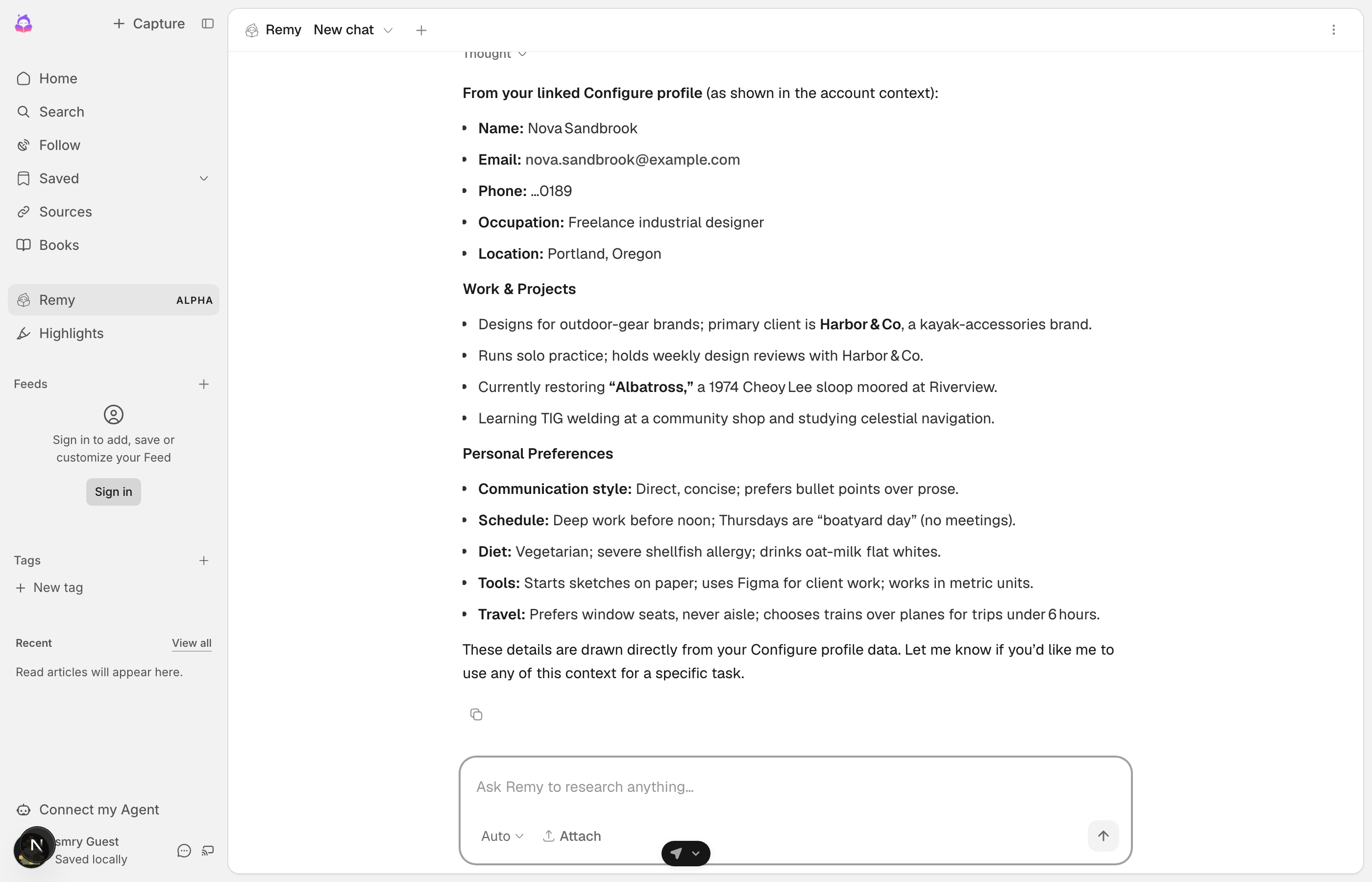
What your agent knows about a user it has never talked to.
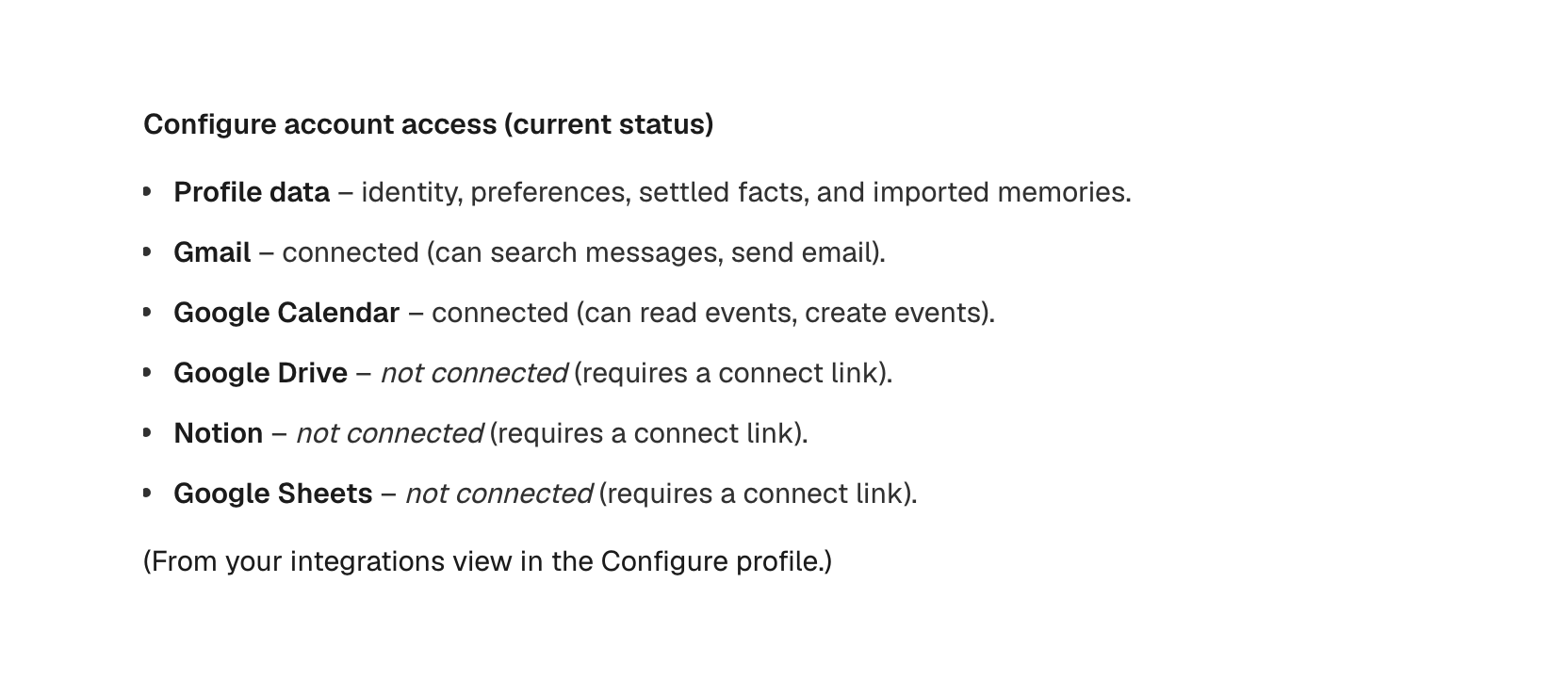
What it can reach through connected apps. Apps the user has not connected are listed too.
## Try it in the sandbox
Test every step before a real user does. This endpoint needs no account and is rate limited per IP:
```bash
curl -X POST https://api.configure.dev/v1/sandbox/provision
```
You get `sk_test_` and `pk_test_` keys, a test agent, and a synthetic user, Nova Sandbrook, external id `sandbox-user`, already linked with Gmail and Calendar connected. Point your `.env` at the test key and run the seven steps as her. The tool list grows from nine tools on your key to seventeen on her session; the [MCP page](https://docs.configure.dev/mcp/overview.md#read-the-tool-list-correctly) explains why. The response also includes her test phone number and its fixed code, so you can go through Configure's page yourself. Every Configure page accepts them on the test plane and never sends a text.
To test a failure, call `POST /v1/sandbox/simulate` with your `sk_test_` key:
| Scenario | What it does | What to watch |
| --- | --- | --- |
| `gmail_token_expired` | Makes her Gmail connection fail like a revoked token. | Your `tool_not_connected` handling, and the link in its payload. |
`POST /v1/sandbox/reset` restores her seeded state. `returnUrl` must be `https` on the test plane too, so run your return route behind an `https` address while you develop.
To start from a running app, [configure-quickstart](https://github.com/configure-dev/configure-quickstart) has three examples of this pattern: a chat app, a product onboarding, and an SMS agent.
## Handle errors
| What you see | What it means | What to do |
| --- | --- | --- |
| `authorization_required` | The user is not connected. It never means "no data on this user". | The result has a `connect_url`. Send the user to it, through `/configure/start` or as the link itself. |
| `approval_required` | The user linked a real Configure account, so your key no longer has access to their context. They need to approve your agent. | Send them through `/configure/start` again. Finishing Configure's page approves your agent. See [Your own users](https://docs.configure.dev/variations.md). |
| `-32009` `commit_required` | A read left a commit this turn has not made. | Commit the turn, then retry. `configure_connect` is not the fix. |
| `tool_not_connected` | The user has not connected that app, or its token was revoked. | On an `externalId` profile the call returns the connect payload. On a `token` profile it throws with `suggestedAction` `"connect_tool"` (never connected) or `"reconnect"` (access expired) and no link, so mint one with `connect({ app })`. See [Connectors](https://docs.configure.dev/connectors.md). |
| `429` `rate_limited` | Too many calls from your account in a short time. The limit is per account, not per user. The body has `retry_after` in seconds. | Back off and reuse the link you have. Each link is valid until `expires_at`. |
| `402` `PAYMENT_REQUIRED` | Your account is over a plan limit, such as the bulk import limit (server code `quota_exceeded`). The user's connection is fine. Calls and active users have no monthly limit. | Do not show a connect link; it will not help. Fix the plan, and let the turn answer without context. |
The SDK does not put the server's own code, such as `approval_required`, on the error. Match `statusCode` and `suggestedAction` instead. `401` (`AUTH_REQUIRED`) means your key is wrong. `403` (`ACCESS_DENIED`, `suggestedAction: "complete_approval"`) means this user has not approved your agent. Handle them separately: if you treat both as "not connected" and cache it, a key rotation marks every user as unconnected.
**The user clicks a chip, brings their context on Configure's page, and comes back to an agent that knows them and learns from every conversation.**
## Next steps